Guides
Share, pause, schedule and name
Everything about sharing a local service or a folder: Quick Shares at a random trycloudflare.com address and shares on your own domain, stable names from your project and branch, pause and resume, schedules, folder shares, QR codes, stopping after a time or when idle, inspection on or off, and teitunnel share, shares and schedule.
A share makes something on this computer public for a while: a dev server for a colleague, a webhook endpoint for a provider, a built site for a review. There are two kinds:
| Quick Share | Share on your domain | |
|---|---|---|
| Address | Random: https://quiet-river-lamp-orbit.trycloudflare.com | One you choose: https://demo.yourhost.com |
| Needs | Nothing: no account, no domain | A connected Cloudflare account with a domain |
| What it is in Cloudflare | A throwaway Quick Tunnel | A temporary route on this computer's tunnel, with its DNS record |
| Pause and schedules | Pause and resume per share (inspected ones), or all from the menu bar | Pause, resume and schedules per share |
| Limits | 200 requests in flight, no server-sent events, no uptime guarantee | Your domain's plan |
| Ends | When you stop it, it times out, or Teitunnel quits | The same; its route and DNS record are then removed |
Both go through Teitunnel's inspector by default, so you see each request, and both run the exposure check first. For something that should stay up, add a route instead; to keep a site online while this computer sleeps, publish a Snapshot. Choose how to share compares them all.
Share in the app
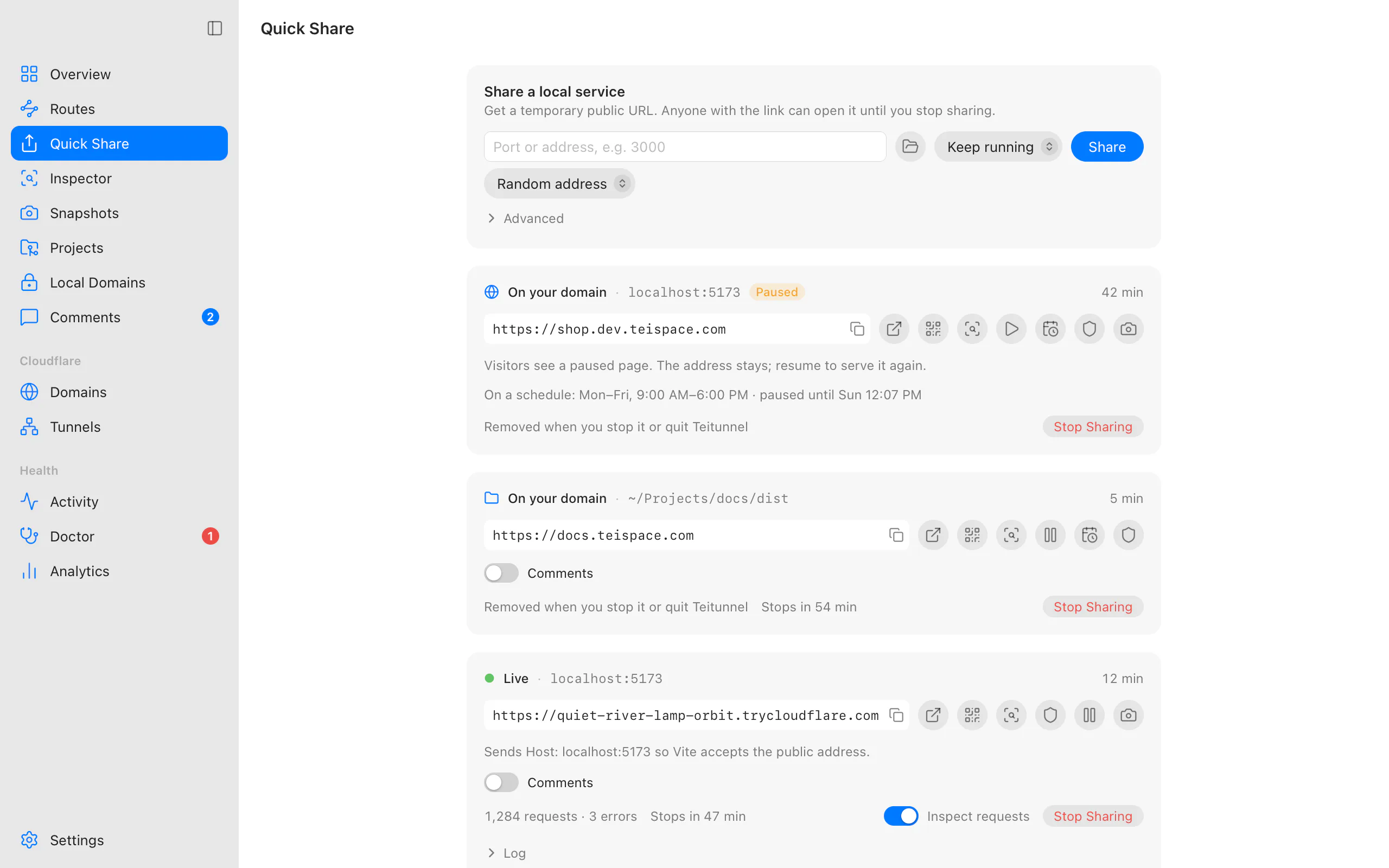
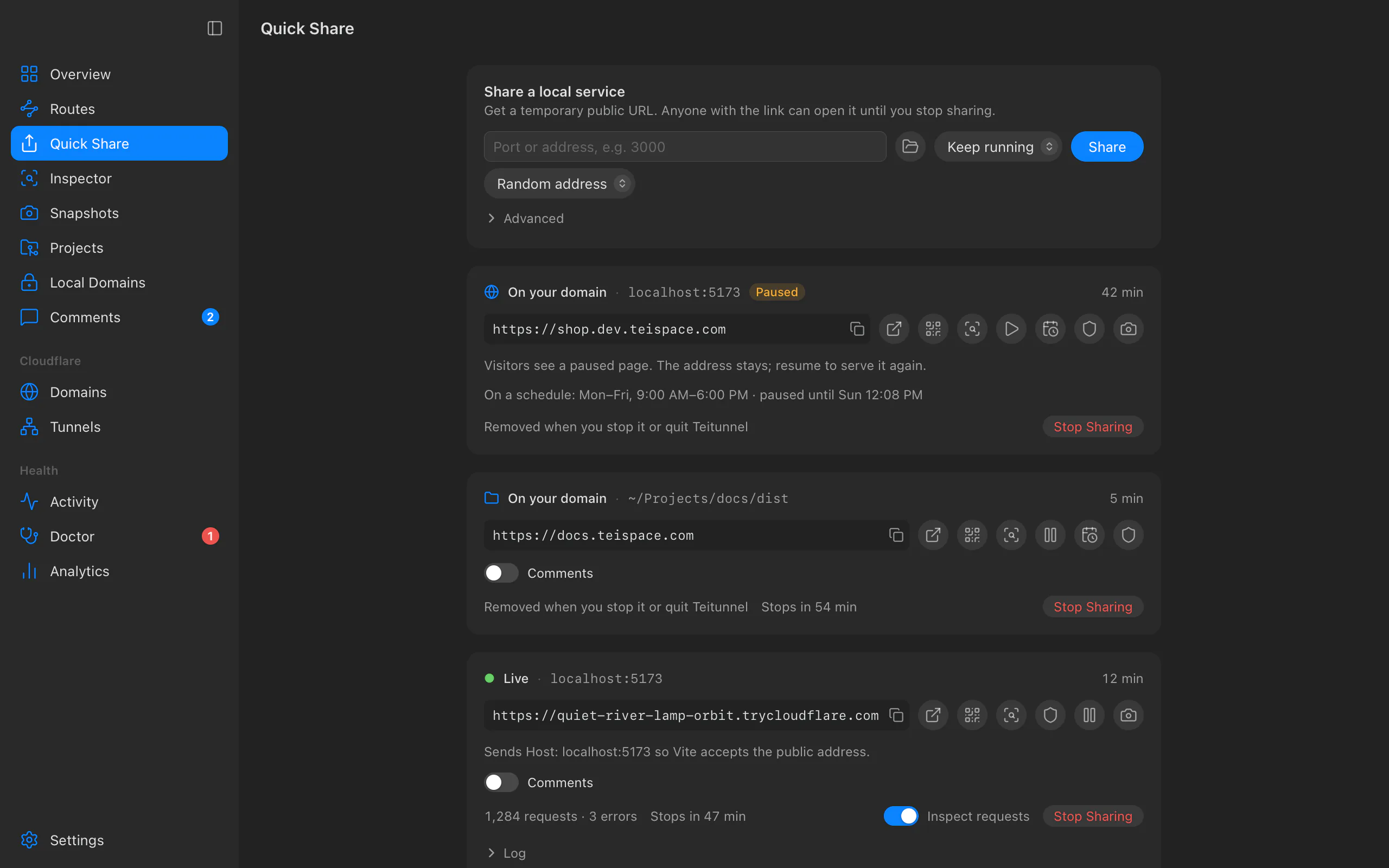
Choose what to share
Open Quick Share in the sidebar (or File ▸ New Quick Share…). Type a port or an
address in Port or address (3000, localhost:5173, https://localhost:8443), or
pick one of the services Running on this Mac: Teitunnel lists dev servers, Docker
containers and other local services with their project names. To share a folder, drop it
on the window or choose Share a Folder… (see below).
Choose the address
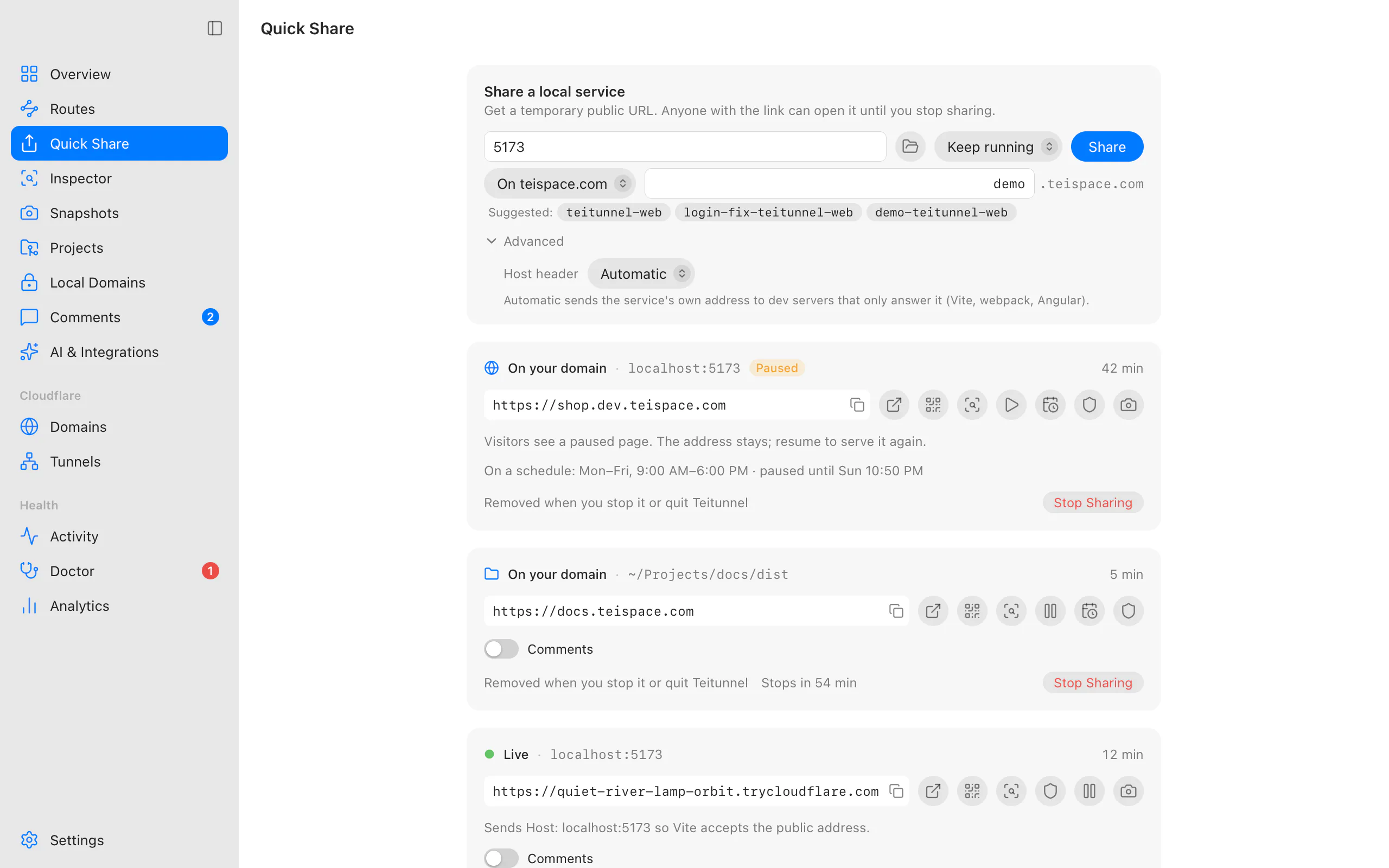
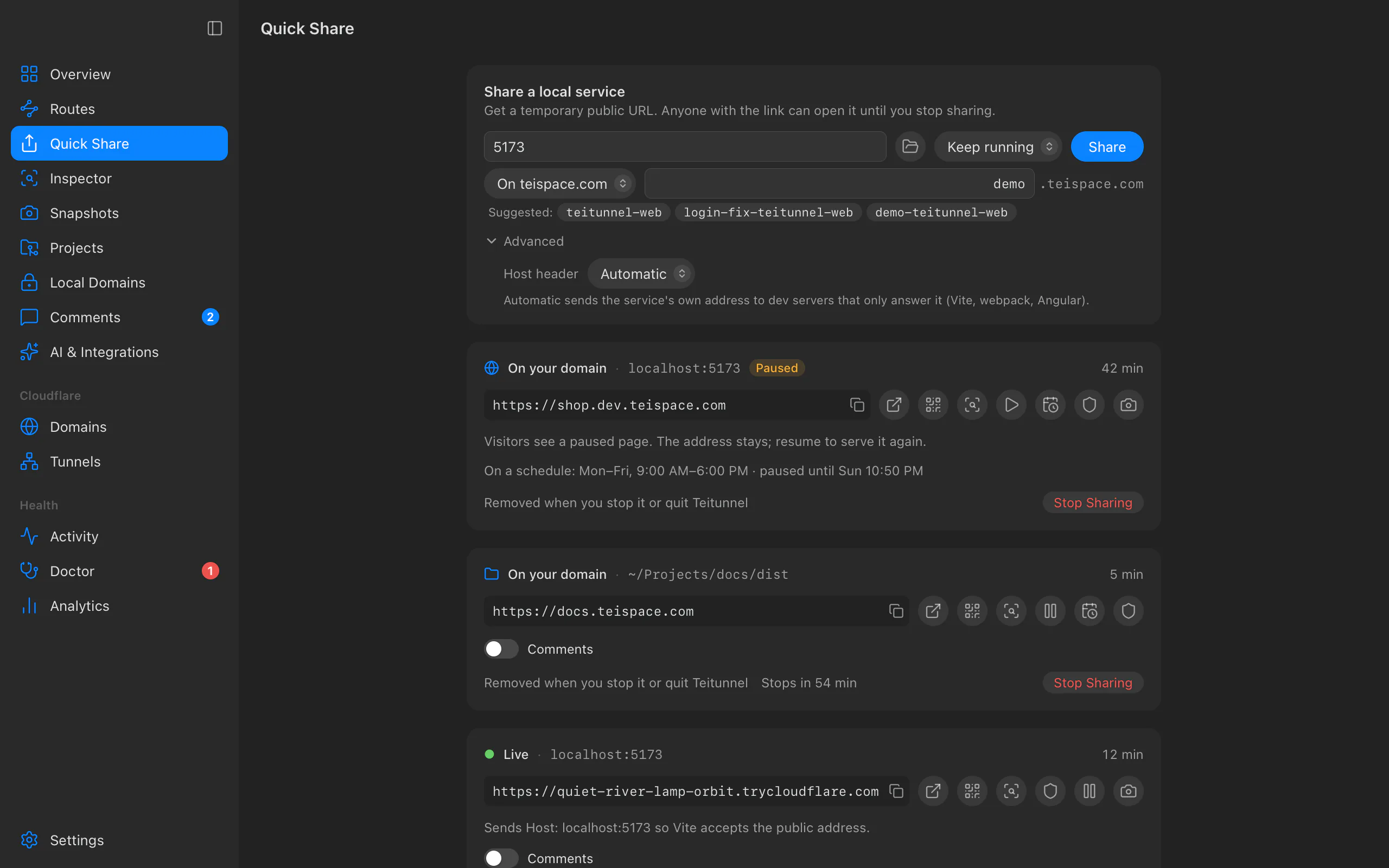
Under Address, keep Random address for a Quick Share, or pick On yourhost.com
(one entry per domain of the account) and type a Subdomain, such as demo.
Teitunnel suggests names from the service's project (the one you used last time first)
and shows what a name with placeholders becomes.
Choose when to stop
When to stop: Keep running, Stop after 15 min, Stop after 1 hour or Stop after 8 hours.
Advanced options (optional)
Under Advanced:
- Host header: Automatic sends the service's own address to dev servers that only
answer it (Vite, webpack, Angular); As the browser sends it passes the visitor's;
Custom sends the value you type, such as
localhost:5173. - Inspect requests: on by default. Off sends requests straight to the service: faster for large downloads, but no request list, pausing or protection.
- For folders: file listings (on by default when the folder has no
index.html) and single-page-app mode.
Share
Choose Share. The exposure check runs first; if it finds something, you choose Share Anyway or Cancel. The share's card shows Getting a URL…, then Live with the address.
Each running share has a card with its address and status, Open in browser, the copy button, Show QR code (for opening it on a phone), request and error counts, Stops in …, its Log, Stop Sharing, Pause (for inspected Quick Shares and every share on your domain), and, for shares on your domain, Schedule. Publish a Snapshot turns the shared site into a static copy that stays online.
Shares started from a terminal appear on the same page under From a terminal, and shares on your domain say Removed when you stop it or quit Teitunnel or Started from the command line.
Share from a terminal
teitunnel share 3000                            # a Quick Share of localhost:3000
teitunnel share 3000 --for 2h                   # stops by itself after 2 hours
teitunnel share 3000 --on demo.yourhost.com     # on your domain, until Ctrl-C
teitunnel share 3000 --on demo.yourhost.com --allow team@yourhost.com   # behind a login
teitunnel share ./dist                          # a folder
teitunnel shares                                # every share, wherever it runs
teitunnel shares --stop demo.yourhost.com
$ teitunnel share 3000
https://quiet-river-lamp-orbit.trycloudflare.com
█▀▀▀▀▀█ ▄▀▄ ▀▄█ █▀▀▀▀▀█
…
http://localhost:3000 is public at https://quiet-river-lamp-orbit.trycloudflare.com for anyone with the link. Press Ctrl-C to stop.
14:02:11 GET 200 18 ms 2.1 KB quiet-river-lamp-orbit.trycloudflare.com/ 3c9e1f0aThe address alone goes to standard output (so teitunnel share 3000 | head -1 works in
scripts; --json prints {"url": …, "hostname": …} instead), and everything else to
standard error. A QR code is printed when the output is a terminal (--no-qr leaves it out),
and a line per request unless you pass --quiet.
When the app is running, teitunnel share hands a Quick Share (of a service or a
folder) to the app (which may ask you to allow it) and returns; the share keeps running there.
--here keeps it in the terminal instead, and --app fails if the app isn't running. A share
on your domain, or one with --no-inspect, --idle, --watch or --comments, always runs in
the terminal, for as long as the command runs.
| Flag | What it does |
|---|---|
--for DURATION | Stop after 30m, 2h, 90s… |
--on [HOSTNAME] | Share on your domain instead of a random address. Alone, reuses the name last used in this folder. |
--account, -a | With --on: the account, when several are connected. |
--allow EMAIL|@DOMAIN|github:ORG[/TEAM] | With --on: require a login (repeatable). |
--sign-in github|google|any | With --allow: only that login method of the account (GitHub and Google). |
--schedule "DAYS HH:MM-HH:MM", --tz ZONE | With --on: serve only during these hours (schedules). |
--host-header HOST / --no-host-header | Send this Host header to the service, or pass the visitor's through unchanged. |
--listing / --no-listing, --spa | With a folder: list files (the default when it has no index.html) or never, or serve index.html for unknown paths. |
--no-inspect | Don't send requests through the inspector. |
--idle DURATION | Stop after this long without a request. |
--watch PATH | Say so when a request hits this path, such as /webhooks/* (repeatable). |
--comments | Let visitors pin comments on its pages. |
--strict | Don't share when the exposure check finds something. |
--json, --quiet, --no-qr | Output for scripts, no request lines, no QR code. |
--here, --app | Where the share runs (see above). |
--mcp, --ai | Share a local MCP server or AI server behind a bearer token; see the inspector. --mcp needs --on. |
--mcp-path PATH, --new-token | With --mcp: the server's endpoint path (default /mcp, then /sse and /); a new token instead of the saved one. |
Shares on your domain
A share on your domain is a temporary route: Teitunnel plans and applies it like any other change (tunnel configuration, then the DNS record, then a check), and removes the route and its record when the share ends. It's served by this computer's tunnel, so the app's connector (or the command's, in a terminal) must be running.
- It never takes over someone else's name. A hostname with a DNS record Teitunnel didn't create is refused, and so is one someone on your team reserved or routes on another machine.
- Nothing is left behind. The share is recorded before its route is applied. If the app or a terminal running a share quits or crashes, the app removes those routes within 30 seconds, or at its next launch.
- Logins:
--allowputs a Cloudflare Access login in front of it, like a route's.
Names from your project and branch
A hostname may contain {project}, {branch} and {user}, the same placeholders as
project files:
teitunnel share 3000 --on {branch}.dev.yourhost.com     # login-fix.dev.yourhost.com
teitunnel share 3000 --on {project}-{user}.yourhost.com # shop-<your user name>.yourhost.com
teitunnel share 3000 --on                               # the name used in this folder last time
{project} is the name in the folder's package.json, Cargo.toml, pyproject.toml,
composer.json or go.mod (else the folder's name), {branch} is read from the git
repository the folder is in (no git process is started), and {user} is your user name. Every
value becomes a valid DNS label, and the command says what the name became: {branch}.dev.yourhost.com
is login-fix.dev.yourhost.com here. The name you used is remembered for the folder.
Pause and resume
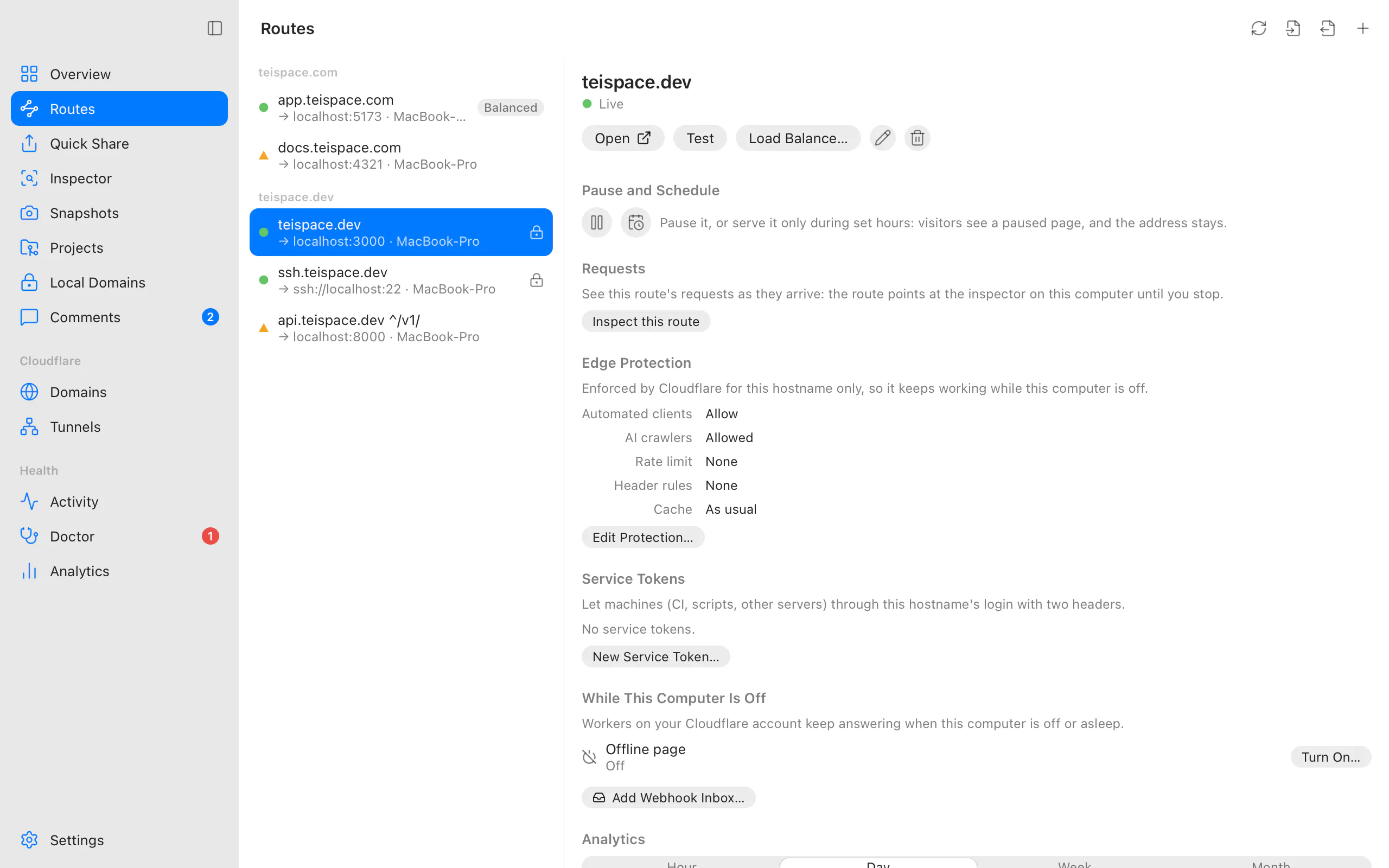
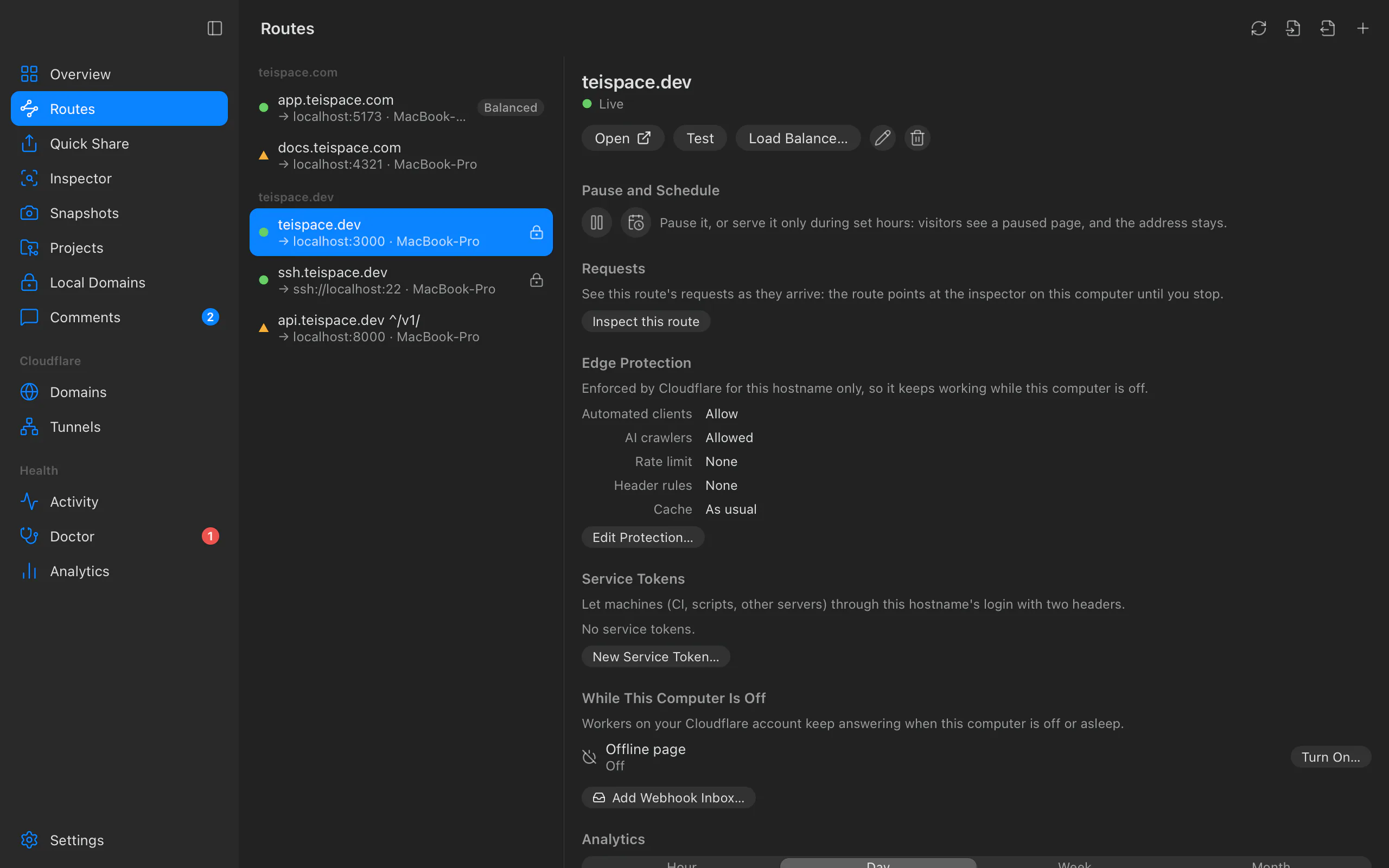
Pausing keeps the address: the route and its DNS record stay, and visitors get a small
"paused" page (HTTP 503 with Retry-After) until you resume. Resume, and the same address
serves your service again at once, with no DNS change to wait for.
- App: Pause on the share's card. A Paused badge shows while it lasts; Resume ends it.
- Terminal:
teitunnel shares --pause demo.yourhost.com, thenteitunnel shares --resume demo.yourhost.com. - Quick Shares: Pause on the card,
teitunnel shares --pause <its URL or id>for the app's, or Pause All Shares in the menu bar. The address stays too; only inspected shares pause, since the inspector shows the page. - AI agents:
pause_shareandresume_share, with your approval (an agent pauses the Quick Shares it started itself without asking).
The paused page is shown by Teitunnel's inspector in the process that serves the share: the
app, the terminal running teitunnel share --on, or teitunnel up/serve. A share that
isn't inspected is pointed at the inspector first (the same reviewed change as
Inspect this route) and pointed back when you resume.
You can pause one of this computer's permanent routes the same way (Routes ▸ the route ▸
Pause and Schedule, with its schedule next to it), while the app,
teitunnel up or teitunnel serve runs to show the page. When none of them runs, Teitunnel
says so rather than pretending.
On a schedule
A schedule makes a share on your domain, or a route, available only during set hours on set days, and paused the rest of the time: a demo that's only up during office hours, a staging site that's closed at night.
-
App: Schedule on the share's card. Choose the Days, the hours From and to, and Save. The card then shows On a schedule: … with the days and hours, and when it next changes. Remove Schedule takes it off.
-
Terminal:
teitunnel schedule demo.yourhost.com mon-fri 09:00-18:00
teitunnel schedule demo.yourhost.com weekends 10:00-16:00 --tz Europe/Berlin
teitunnel schedule demo.yourhost.com            # show it
teitunnel schedule demo.yourhost.com --off      # remove it; the share stays as it is
teitunnel schedules                             # every schedule
teitunnel share 3000 --on demo.yourhost.com --schedule "mon-fri 09:00-18:00"
$ teitunnel schedules https://demo.yourhost.com mon,tue,wed,thu,fri 09:00-18:00 (local time) on, pauses at Wed 18:00 -
AI agents:
schedule_share.
Days are written like mon-fri, sat,sun, weekdays, weekends or daily, and times in
24-hour HH:MM. Times are wall-clock times in your computer's time zone, or in the one you
name with --tz, so daylight saving time keeps 09:00 at 09:00. A window that ends before it
starts runs past midnight (fri 22:00-02:00). Pausing or resuming by hand holds until the
schedule's next change.
Whoever serves the share applies its schedule within 30 seconds: the app, teitunnel up,
teitunnel serve, the terminal running the share, or teitunnel mcp. For this computer's
routes, when none of them runs, routes are served normally.
Share a folder
Share a folder of files (a built site, docs, a design export) without running a server:
- App: drop a folder on the Quick Share window, or choose Share a Folder…. Under
Advanced: List the files of folders without an index page (already on when the
folder has no
index.html, so its address never answers Not found) and Single-page app (every page opens index.html). Share a service instead goes back. - Terminal:
teitunnel share ./dist(a random address; handed to the app when it runs) orteitunnel share ./dist --on docs.yourhost.com, with--listing/--no-listingand--spa. - AI agents:
share_folder.
Teitunnel's inspector serves the files, so a folder share can't turn inspection off. Hidden files, .env files, keys, .git and node_modules are never shared, nothing outside the folder is ever served (links that lead out of it are refused), and sharing the whole disk or your home folder is refused: … holds far more than a site. Share the folder with the files you want people to see, like dist or public.
Stop after a while, or when idle
- After a fixed time: When to stop in the app,
--for 2hin the terminal. The card shows Stops in …. - When nobody uses it: Settings ▸ Inspector ▸ Stop idle shares stops any share after
15 minutes to 8 hours without a request (off by default). Per share, it's in the share's
Inspection Settings… ▸ More, or
--idle 30min the terminal. You get a notification: demo.yourhost.com had no requests for 30 minutes, so it stopped.
Protect a Quick Share
Click the shield on a Quick Share's card to put a password page, a secret link, basic authentication or a bearer token in front of it, allow or refuse networks, or block bots and AI crawlers. The inspector enforces it on this computer, so it needs Inspect requests on and works only while Teitunnel runs. Once something protects the share, the shield is filled in and the card says what (Protected on this computer: Password page). Shares on your own domain also have Protect at Cloudflare, which keeps working while this computer is off. The options are the same as in the inspector.
Inspection on or off
Shares go through the inspector unless you turn it off. Turning it off or on for a running Quick Share restarts it, so it gets a new address; the app asks first (The share restarts, so it gets a new address.). The default for new Quick Shares is Settings ▸ Inspector ▸ Inspect Quick Shares.
Without the inspector, a share has no request list, no paused page, no idle stop and no protection on this computer. With it, the inspector adds a few milliseconds per request, and keeps event streams alive past Cloudflare's 125-second limit.
Troubleshooting
- "Cloudflare didn't provide a URL in time. Check your internet connection and try again." A Quick Share waits 20 seconds for trycloudflare.com. It's sometimes busy; try again, or share on your own domain.
- "This Quick Share hit its limit of 200 requests at once. Share on your own domain for more." Quick Tunnels carry at most 200 requests in flight.
- The page loads but a dev server answers "Invalid Host header" or "Blocked request".
Set Host header to Automatic or Custom (
--host-header localhost:5173). Teitunnel's check usually spots it and offers the fix. - "The terminal that shared demo.yourhost.com has stopped, so there's nothing to pause." The share ended with its terminal. Share it again.
- "demo.yourhost.com runs in a terminal without Teitunnel's inspector (--no-inspect), which
is what shows the paused page." Stop it and share it again without
--no-inspect. - "Pausing demo.yourhost.com needs Teitunnel running on this computer to show the paused page: open the app, or run teitunnel up or teitunnel serve."
- "No name was used for a share from this folder yet; give one: --on demo.yourhost.com (or
--on {branch}.dev.yourhost.com)."
--onalone only works after you've shared from this folder once. - "{branch} has no value here (the branch comes from the git repository the share starts in)." Run the command inside the repository, or use another placeholder.
- "Too many Quick Shares are running." Stop some; each share runs its own cloudflared.
Related
- Quick Share: your first share, step by step.
- Inspector: see, replay and protect a share's requests.
- Exposure check
- Require a login and protection
- Snapshots: a static copy that stays online.
Last updated on
The menu bar and tray
Route status and Quick Shares without opening the window: the menu bar or tray menu, one-click sharing of running services, pausing and stopping every share, a global shortcut that shares your dev server, and teitunnel:// links for launchers and scripts.
Local domains
Open services on this computer at addresses like https://shop.test or https://app.localhost, with certificates your browsers trust, subdomains, request inspection and phone access over .local. How trust and name resolution are set up on macOS, Windows and Linux, and teitunnel local-domain. Nothing leaves your computer.