Getting started
Find your way around
A tour of the Teitunnel app, section by section, with what each part is for, where its terminal equivalent is, the keyboard shortcuts, the command palette and Settings.
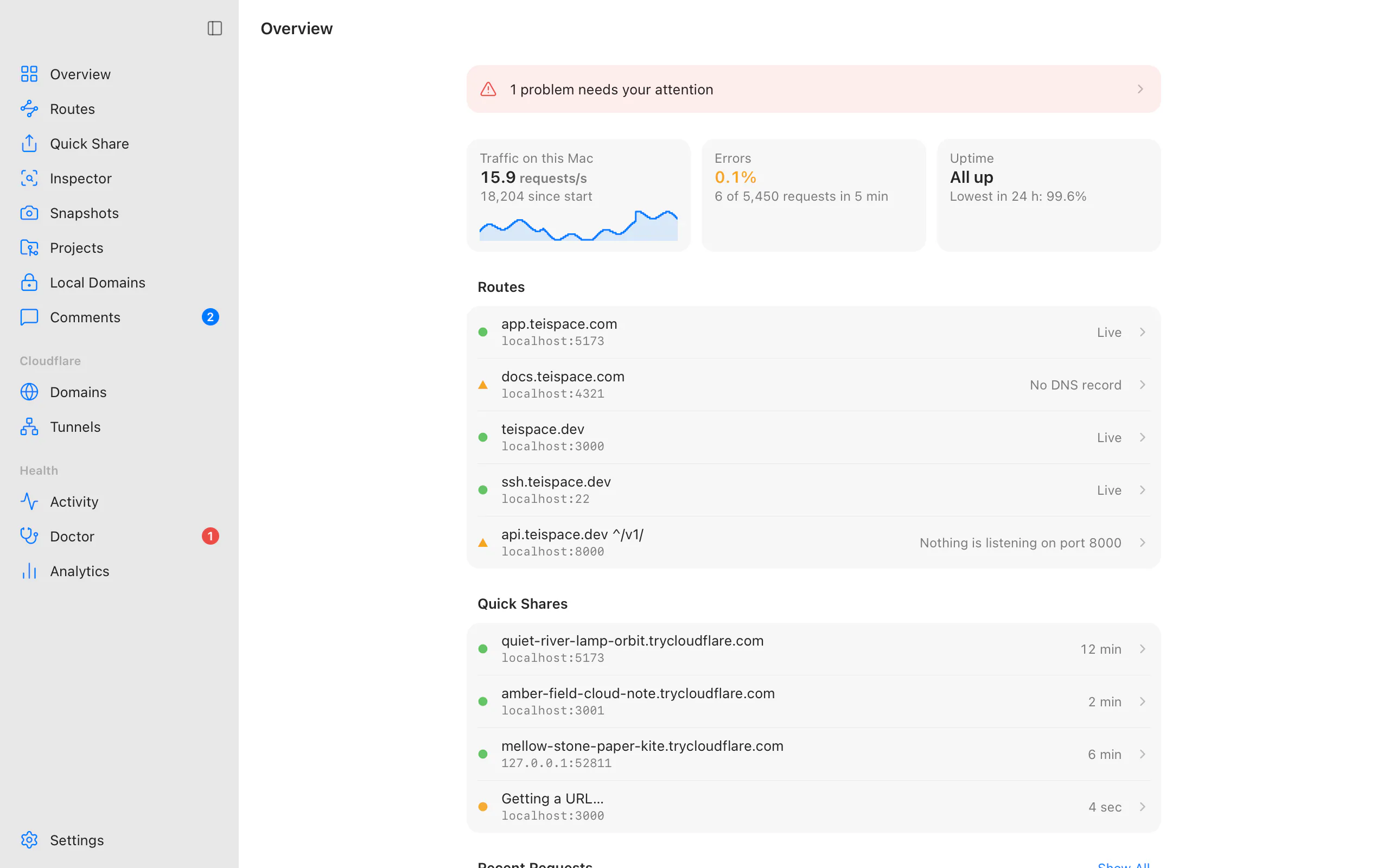
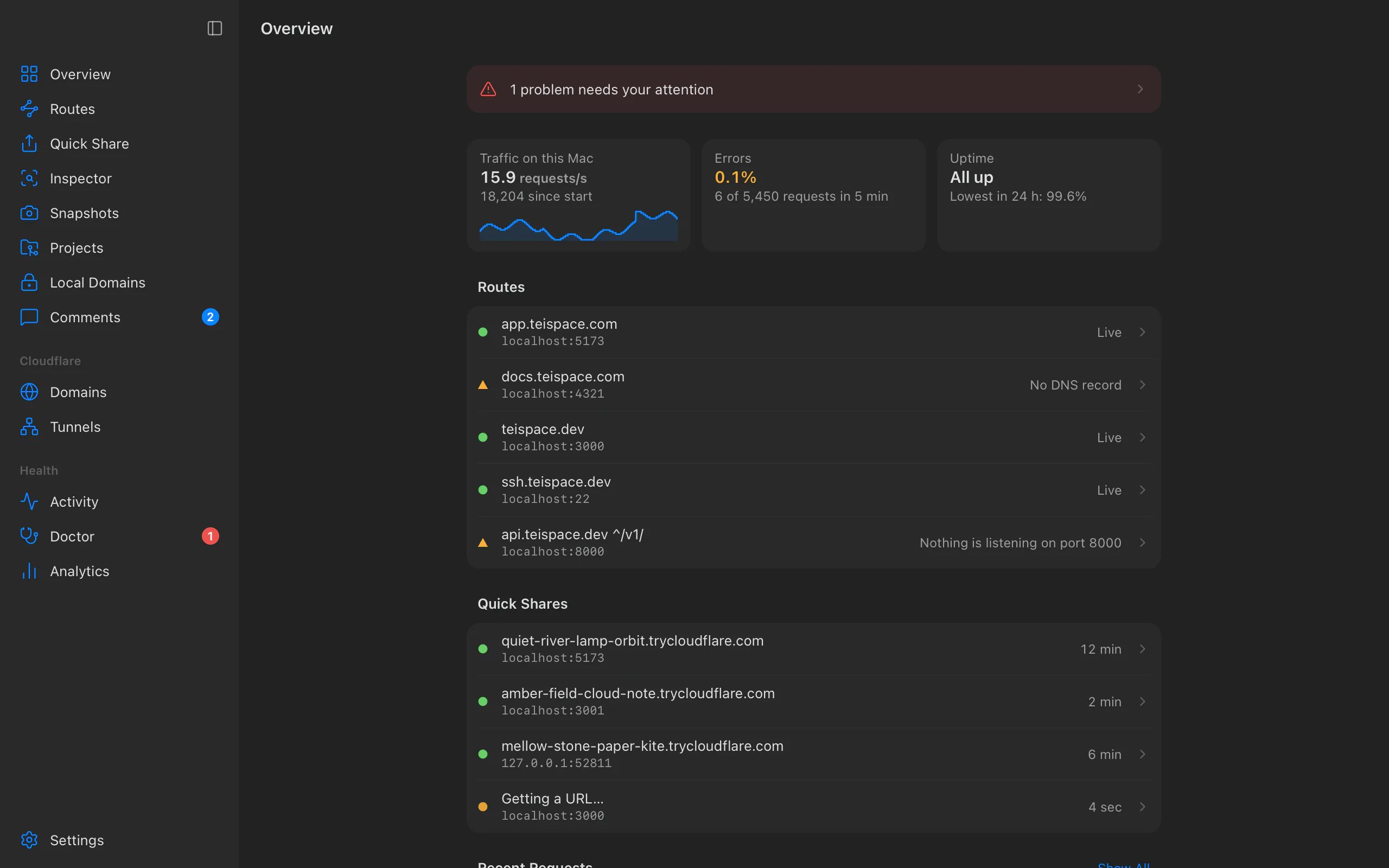
Teitunnel's window has a sidebar of sections, each a list on the left and the selected item's details on the right. This page says what each section is for, which command does the same in a terminal, and how to get around with the keyboard.
The sidebar
Your work
| Section | What it's for | In a terminal |
|---|---|---|
| Overview | What's running now: problems that need you, traffic, errors and uptime on this computer, your routes and Quick Shares, and recent requests. | teitunnel status, teitunnel top |
| Routes | Hostnames on your domains and the services they reach. Select one for its address, details, activity, logs, pause and schedule, edge protection, offline page and webhook inbox. First route | teitunnel routes, teitunnel route add |
| Quick Share | Temporary public addresses, random or on your domain, for a service or a folder. Sharing | teitunnel share, teitunnel shares |
| Inspector | Every request to inspected shares and routes: see, replay, edit, compare and export. Inspector | teitunnel traffic |
| Snapshots | Static copies of a site, hosted on your Cloudflare account, that stay online when your computer is off. Snapshots | teitunnel snapshot |
| Projects | teitunnel.yml files: what a repository declares, and whether it's applied. Project files | teitunnel project |
| Local Domains | HTTPS names like shop.test for services on this computer, never on the internet. Local domains | teitunnel local-domain |
| Comments | Feedback visitors pinned on shared pages and Snapshots. Comments | teitunnel comments |
| AI & Integrations | AI apps and agents using Teitunnel's MCP server, MCP servers you share, the browser extension, editor extensions and teitunnel:// links. AI agents, Integrations | teitunnel mcp |
Cloudflare
| Section | What it's for | In a terminal |
|---|---|---|
| Domains | The domains of your connected accounts: whether each is Active or Waiting for nameservers (with the nameservers to set), its plan, what the credential may do on it, and its reservations. | teitunnel reservations |
| Tunnels | This computer's tunnels and others in the account: whether each runs here, Keep running when Teitunnel quits, connectors, private networks, traffic and logs. Run modes, Several tunnels | teitunnel tunnels, teitunnel always-on |
Health
| Section | What it's for | In a terminal |
|---|---|---|
| Activity | Every change Teitunnel made to Cloudflare, step by step: its outcome, the agent that asked for it, the same steps as commands, and a check that it still works. Changes | none |
| Doctor | Problems Teitunnel found, why they happen, and fixes you apply in one click. Doctor | teitunnel doctor |
| Analytics | Requests, errors, response times and countries from Cloudflare's edge, uptime checks and alerts, per route. Analytics | teitunnel analytics, teitunnel uptime |
Settings is at the bottom of the sidebar (and ⌘, / Ctrl+,). A number next to Doctor counts problems; one next to Comments counts unread comments.
Keyboard shortcuts
⌘ on macOS is Ctrl on Windows and Linux.
| Keys | Does |
|---|---|
| ⌘1 … ⌘9 | Overview, Routes, Quick Share, Snapshots, Domains, Tunnels, Activity, Doctor, Analytics |
| ⌘N | New Route |
| ⇧⌘N | New Quick Share |
| ⌘R | Refresh |
| ⌘K | Command palette |
| ⌥⌘S | Show or hide the sidebar |
| ⌥⌘I | Show or hide the details pane on the right |
| ⌘, | Settings |
| ⌘Q (Ctrl+Q) | Quit. If routes would stop, Teitunnel asks first and offers to keep them running. |
Inspector, Projects, Local Domains, Comments and AI & Integrations have no number: open them from the sidebar or the command palette.
A global shortcut that shares your dev server from any app is off by default; turn it on in AI & Integrations ▸ More (menu bar and shortcut).
The command palette
⌘K (Ctrl+K), or View ▸ Command Palette… on macOS, opens a search over everything above: type a few letters of a section or an action and press Return. Besides the sections, it has New Route, New Quick Share, Refresh, Settings, Export Diagnostics, Toggle Sidebar, Toggle Inspector, and links to this documentation, Cloudflare Tunnel's documentation, the release notes and Report an Issue….
The menu bar or tray icon
Closing the window keeps routes and Quick Shares running. The menu bar icon (the tray icon on Windows and Linux) shows whether your routes are live and lists your shares, with Share a Local Port…, Pause All Shares and Stop Routes on This Mac. Quitting Teitunnel from it, or with ⌘Q, stops what isn't set to keep running. See menu bar and tray.
Settings
| Tab | What's in it |
|---|---|
| General | Appearance, updates, Open at login, installing the teitunnel Command line, notifications and quiet hours, alert rules, the check Before Sharing, API descriptions from captured requests, Move to Another Computer, and the menu bar icon. |
| Accounts | Connected Cloudflare accounts, what each may do (Permissions), and Connect an Account. Accounts |
| Inspector | Defaults for inspection: inspecting Quick Shares, stopping idle shares, what's kept and for how long. Inspector |
| cloudflared | The connector's version, where it came from, where it is, and its updates. Run modes |
When something needs you
- Notifications say when a route goes down or comes back, when the Doctor finds a problem, when a share stops, and when an alert fires. They only appear when no Teitunnel window is in front. Choose which in Settings ▸ General ▸ Notifications (notifications).
- Reviews: every change to Cloudflare opens a sheet with the plan. Nothing changes until you apply it (how changes work).
- Approvals: when the
teitunnelcommand, an editor extension or an AI agent asks the app to do something, the app asks you first (integrations, AI agents).
Related
Last updated on
Put a service on your domain
Connect your Cloudflare account and route a hostname such as app.yourhost.com to a service on your computer with Cloudflare Tunnel, with the DNS record made for you.
Expose localhost to the internet
Share a website or API running on localhost at a public HTTPS URL with Cloudflare Tunnel, free and without port forwarding, from the app or the command line. Stable URLs on your own domain too.