Guides
Local domains
Open services on this computer at addresses like https://shop.test or https://app.localhost, with certificates your browsers trust, subdomains, request inspection and phone access over .local. How trust and name resolution are set up on macOS, Windows and Linux, and teitunnel local-domain. Nothing leaves your computer.
A local domain gives a service on your computer a real HTTPS address: https://shop.test
instead of http://localhost:3000. Secure cookies, service workers, OAuth redirects,
SameSite rules, and anything else that only works on HTTPS or needs a proper hostname,
behave as they will in production. Use them for day-to-day development, for apps with
several services on subdomains (api.shop.test, admin.shop.test), or to try a site on your
phone.
Local domains never touch Cloudflare and aren't reachable from the internet. They need no account, and work offline.
Pick a name
| Ends in | Works in | Setup |
|---|---|---|
.localhost | Browsers (Chrome, Firefox, Safari, Edge) | None: browsers send every .localhost name to this computer. |
.test | Browsers and every other tool (curl, Node, Java, Python…) | A one-time resolver entry, which needs an administrator. Teitunnel shows the command. |
.local | This computer, and phones and tablets on the same network | None on the computer. Phones need Teitunnel's certificate authority installed. |
A name without one of these endings gets .localhost added: shop becomes shop.localhost.
Turn on Include subdomains to send *.shop.test (one level: api.shop.test,
admin.shop.test) to the same service.
In the app
Add a domain
Open Local Domains in the sidebar and choose Add Local Domain. Fill in:
- Name, such as
shop.test(the sheet shows what it will be: It will be shop.localhost.); - Service: a port (
3000),host:port, or a URL such ashttps://localhost:5173. Detected services are offered; - Use HTTPS (on by default): a certificate from Teitunnel's local certificate authority, with plain HTTP redirecting to it;
- Include subdomains, and Record requests in the inspector to see its traffic in the inspector, with secrets masked.
Choose Add. https://shop.test is ready.
Trust the certificate authority, once
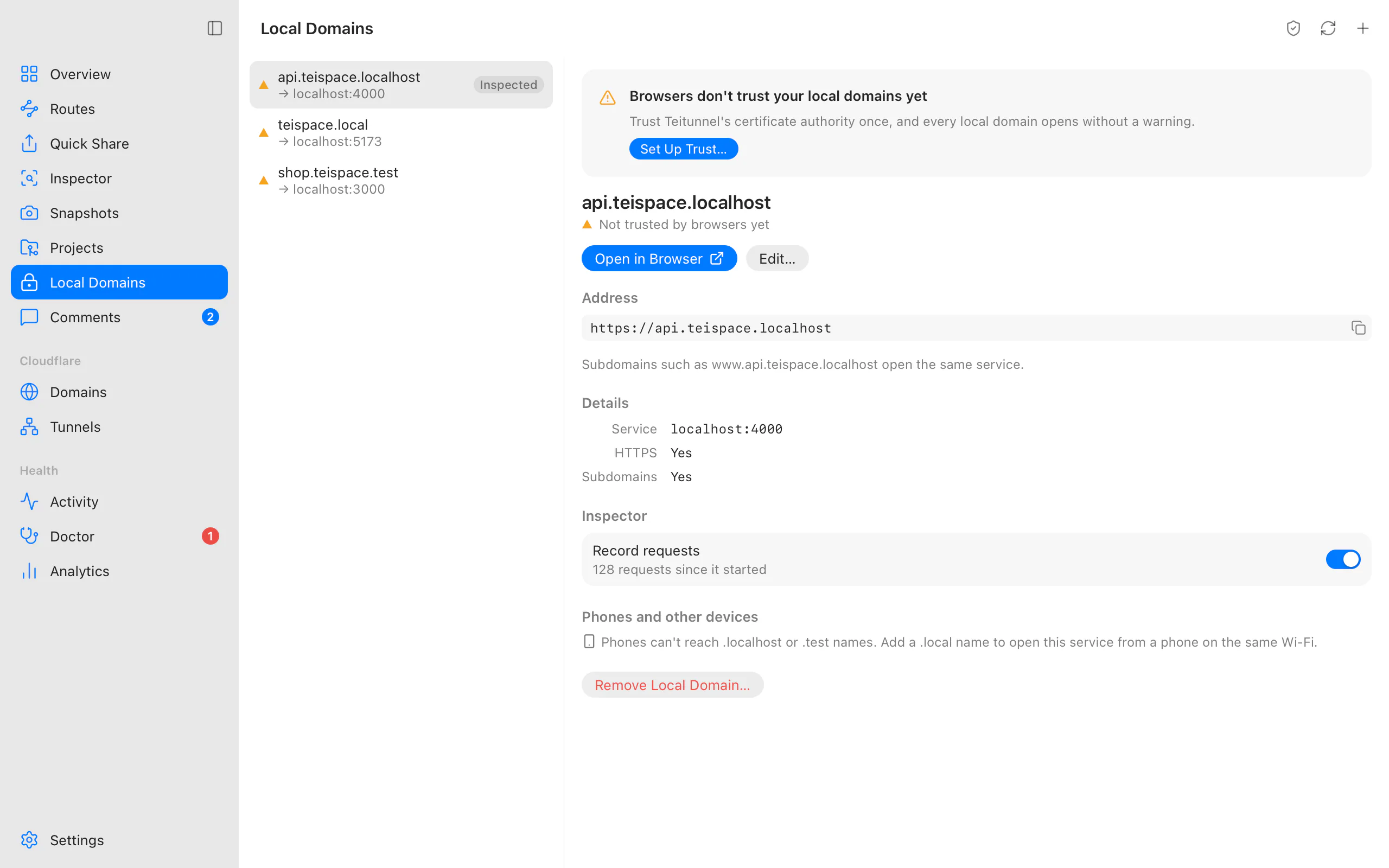
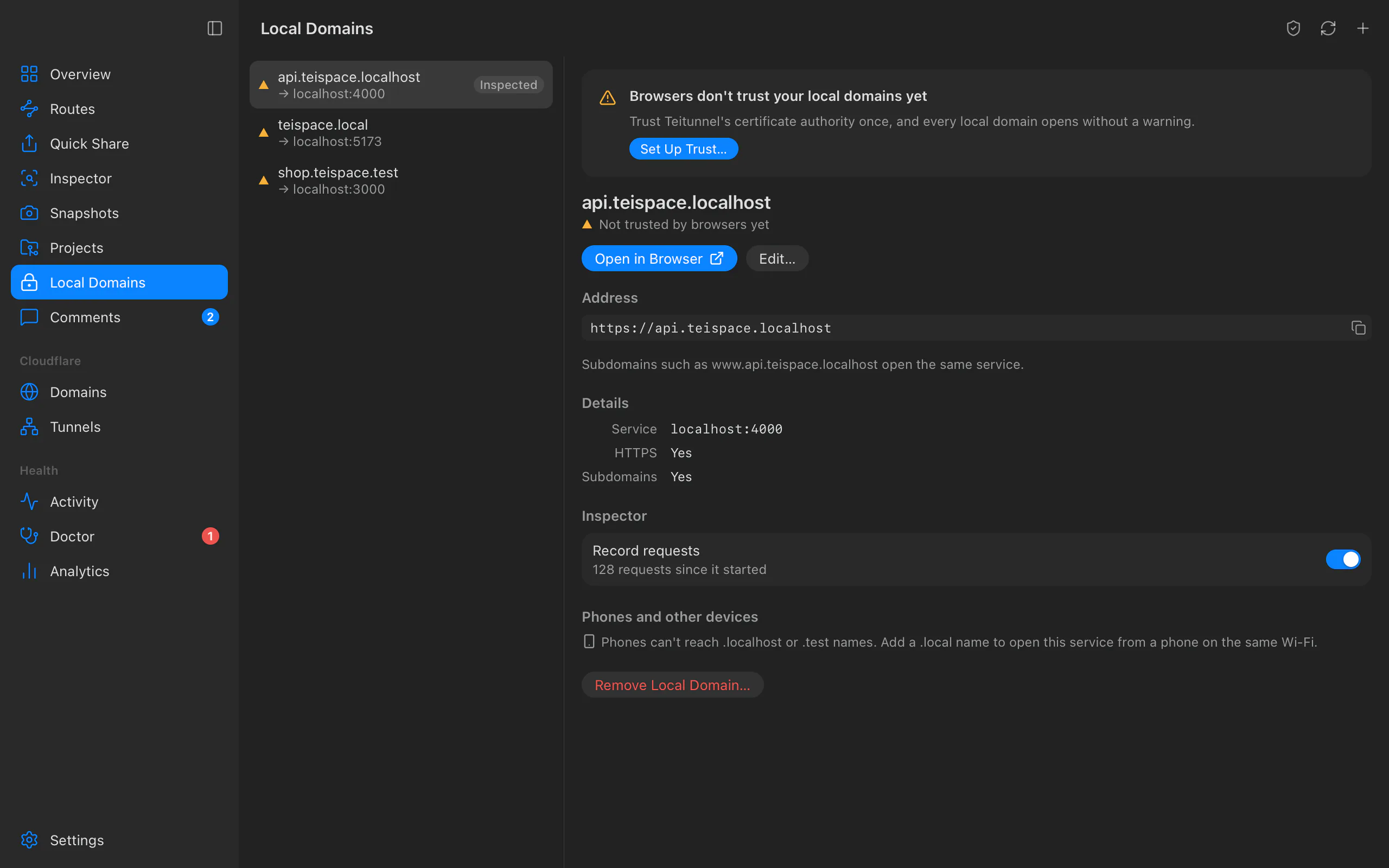
The first time, a callout says Browsers don't trust your local domains yet. Choose Set Up Trust… (or Certificate Trust in the toolbar) and Trust. It's done once for every local domain; see trust for what happens on each system.
For .test names: add the resolver entry, once
The callout Set up .test names once shows a command to run as an administrator, with Copy command. Paste it into a terminal. Teitunnel checks again every few seconds and the callout goes away when it works. On Linux, Run as Administrator… runs it for you after asking for your password.
Open it
Open in Browser, or copy the address with Copy address.
Each domain shows its state: Serving, Not served, .test names need setting up, Not trusted by browsers yet or Points at another computer, with the fix in place. Local domains start with the app, keep working across sleep and network changes, and stop when you quit. Edit… changes a domain; Remove Local Domain… removes it (Teitunnel stops answering for it. The service itself isn't touched.).
From a terminal
teitunnel local-domain add shop.test 3000          # served by the app, or here until Ctrl-C
teitunnel local-domain add api 4000 --wildcard     # api.localhost and *.api.localhost
teitunnel local-domain add hooks.localhost 8000 --inspect
teitunnel local-domain add docs.test 8080 --no-https
teitunnel local-domain ls                          # each domain and whether it's served
teitunnel local-domain trust                       # trust the certificate authority
teitunnel local-domain trust --browsers --firefox  # also Chrome's and Firefox's own lists
teitunnel local-domain status                      # CA, trust, ports, .test names, fixes
teitunnel local-domain serve                       # serve them all without the app
teitunnel local-domain rm shop.test
teitunnel local-domain untrust --forget            # stop trusting, and delete the CA
teitunnel local is a shorter name for the same command, and ls/list and rm/remove
are interchangeable.
When the app runs, add saves the domain and the app serves it at once (Served by the
Teitunnel app.). Without the app, add and serve serve local domains from the terminal until
you press Ctrl-C. --here serves from the terminal even when the app runs, and add --no-serve only saves the domain.
teitunnel local-domain status prints the certificate authority, where it's trusted, the
ports in use, each domain's state, and the exact commands for anything that needs an
administrator.
In a project file
localDomains:
  - name: shop.localhost
    port: 3000
    wildcard: true
Applying the project file adds them to this computer's local domains.
Trust
Teitunnel makes its own certificate authority the first time it's needed. Its private key stays in your keychain (Credential Manager on Windows, your keyring on Linux); it's never in Teitunnel's database, a backup or the app's windows. Each local domain gets a short-lived certificate (30 days) that renews by itself, 10 days before it expires, including after sleep.
The authority is name-constrained: it can only sign .localhost, .test and .local
names and loopback and private addresses. Browsers and TLS libraries enforce that, so even a
stolen key couldn't be used to impersonate a real website.
| Where it's trusted | Asks | |
|---|---|---|
| macOS | Your login keychain, as trusted. Safari, Chrome, Edge and Firefox (120 and later) use it. | Your password |
| Windows | Your user's trusted root certificates, which browsers using the Windows certificate store rely on. | A confirmation |
| Linux | Chrome's and Firefox's certificate databases (needs NSS certutil: libnss3-tools, nss-tools or nss). The system list, used by curl and most tools, needs an administrator: Teitunnel shows the commands and can run them with pkexec. | Your password, for the system list |
Where it's trusted in the trust sheet lists each store with its state (Trusted, Added, not trusted, Not added, Needs certutil…). Two options cover browsers with their own lists: Also add it to Chrome's and Firefox's own certificate lists and Let Firefox trust it (Firefox trusts the system's certificates by default since version 120; this turns that back on in profiles where it was switched off).
Stop Trusting… in the trust sheet (or teitunnel local-domain untrust) removes it again;
--forget also deletes the authority, and a new one is made the next time it's needed.
.test names
.test names need a one-time entry that sends them to Teitunnel's small name server on
127.0.0.1, port 53535 (port 53 on Windows, whose resolver can't use another). It only
answers for your .test domains:
-
macOS: the file
/etc/resolver/testwithnameserver 127.0.0.1andport 53535:sudo mkdir -p /etc/resolver printf '%s' 'nameserver 127.0.0.1 port 53535 ' | sudo tee /etc/resolver/test > /dev/null sudo chmod 644 /etc/resolver/test -
Linux (systemd-resolved): a drop-in,
/etc/systemd/resolved.conf.d/teitunnel.conf, withDNS=127.0.0.1:53535andDomains=~test, then a restart ofsystemd-resolved. -
Windows: a Name Resolution Policy Table rule for
.test.
The app and teitunnel local-domain status show the exact commands for your system.
Ports
Local domains use ports 443 and 80, so addresses have no port number. Plain HTTP redirects to
HTTPS (a domain with HTTPS off is served on port 80). When 443 is taken by another app, or
reserved for administrators (Linux), Teitunnel uses 8443 and 8080 instead and the addresses
include the port; the callout Local domains use another port and the Doctor say why, and
Try Again picks 443 up once it's free. On Linux, lowering
net.ipv4.ip_unprivileged_port_start to 80 lets Teitunnel use the usual ports.
macOS only lets apps use port 443 on all network interfaces, so Teitunnel listens there and refuses every connection that doesn't come from this computer before reading anything.
Phones and other devices
Phones can't reach .localhost or .test names. For a phone on the same Wi-Fi:
- Add a domain ending in
.local, such asshop.local. - In its Phones and other devices section, turn on Allow devices on this network. The section lists this computer's addresses.
- Install the certificate authority on the phone: Save Profile for iPhone… (open the profile on the iPhone or iPad, then turn it on in Settings ▸ General ▸ About ▸ Certificate Trust Settings) or Save Certificate… for Android (install it as a CA certificate).
- Open
https://shop.localon the phone.
Teitunnel announces .local names on your network (mDNS). Other devices can only open .local
names, over HTTPS, and only while the switch is on; everything else still answers this
computer alone.
Good to know
- Your service gets the original
Host(shop.test) andX-Forwarded-Proto: https. A dev server that only answerslocalhostmay need the name in its allowed hosts (Vite'sserver.allowedHosts, for example). - Removing a domain leaves the certificate authority trusted; stop trusting it when you no longer use local domains.
- Servers without a keychain can keep the key in a file with
TEITUNNEL_LOCAL_CA_FILE=/path/to/ca.pem(unencrypted, mode 0600).TEITUNNEL_LOCAL_HTTPS_PORT,TEITUNNEL_LOCAL_HTTP_PORTandTEITUNNEL_LOCAL_DNS_PORTchoose other ports.
Troubleshooting
- "Local domains end in .localhost, .test or .local." Use one of those endings (or none,
for
.localhost). - *"Leave out the . To include subdomains, turn on Subdomains instead." Type
shop.testand turn on Include subdomains (--wildcard). - "… is already a local domain." Edit the existing one instead.
- A
.testname doesn't open (… doesn't reach this computer yet). Run the resolver command shown, once. On Linux, check thatsystemd-resolvedis in use. - "… points at another computer." Your hosts file or DNS resolves the name elsewhere. Check
/etc/hosts(orC:\Windows\System32\drivers\etc\hosts), or use a.localhostname. - "Local domains can't start: ports 443 and 8443 are both taken or not allowed." Quit the app using them, then Try Again.
- "pkexec isn't installed, so Teitunnel can't ask for administrator rights." Run the commands shown in a terminal instead.
- The browser still warns about the certificate. Open Certificate Trust and look at Where it's trusted; Firefox may need Let Firefox trust it. Restart the browser after trusting.
Related
- Inspector: record a local domain's requests.
- Sharing: make a service public instead.
- Project files
- Doctor: the
local.*checks.
Last updated on
Share, pause, schedule and name
Everything about sharing a local service or a folder: Quick Shares at a random trycloudflare.com address and shares on your own domain, stable names from your project and branch, pause and resume, schedules, folder shares, QR codes, stopping after a time or when idle, inspection on or off, and teitunnel share, shares and schedule.
Exposure check
Before a share or route makes a local service public, Teitunnel looks at it for common leaks: .env files, the git folder, backups and database dumps, framework debug pages, open admin panels and database tools, Jupyter without a token, source maps. What it finds, how it works, and --strict for scripts and CI.