Guides
Move to a new computer
Take Teitunnel's setup to another computer in one encrypted file: settings, tunnels, the records of what Teitunnel created, projects, alert rules and local domains. Never tokens or passwords; accounts are connected again after restoring. In the app or with teitunnel backup.
A backup is one file, encrypted with a passphrase you choose, that holds Teitunnel's setup on this computer. Restore it on the new computer and your tunnels run there, Teitunnel still knows which DNS records and logins it created (so it keeps changing only its own), and your projects, settings, alert rules and local domains are back. Use it when you replace a laptop, move routes from a desktop to a server, or reinstall.
What's in it, and what's not
In it:
| Section | What it is |
|---|---|
| Settings | Your preferences, including alert rules and the list of projects |
| Tunnels | This computer's tunnels (their ids and names), which then run on the new computer |
| DNS records Teitunnel created | The ownership index |
| Logins Teitunnel added | The Access applications Teitunnel manages |
| Load-balanced routes | Which routes are load balanced |
| Snapshots and Snapshot versions | Your Snapshots and their recent versions |
| Local domains | Their names and services; the new computer makes and trusts its own certificate authority |
| Edge rules, service tokens, Workers | The records of what Teitunnel added for them (service tokens by id only) |
| Schedules | When each route or share is on (schedules); a route paused right now isn't, since the paused page is shown by this computer |
| Accounts | By name only, so you know which to connect again |
Never in it: API tokens, Cloudflare sign-ins, tunnel run tokens, webhook signing secrets,
service token secrets, the local certificate authority's private key, and the dashboard
password or API keys of teitunnel serve. Those stay in this computer's keychain. After
restoring, you connect your accounts again, and each tunnel's run token is fetched from
Cloudflare when its connector starts.
A few things belong to a computer and don't move:
- Always-on is a service of the old computer: tunnels restore as running with the app. Turn Always-on on again where you want it.
- Trust in local domains: the new computer makes its own certificate authority, so set up trust there once.
- Project files (
teitunnel.yml) live in their repositories and come with them. - Captured requests and Activity stay on the old computer.
In the app
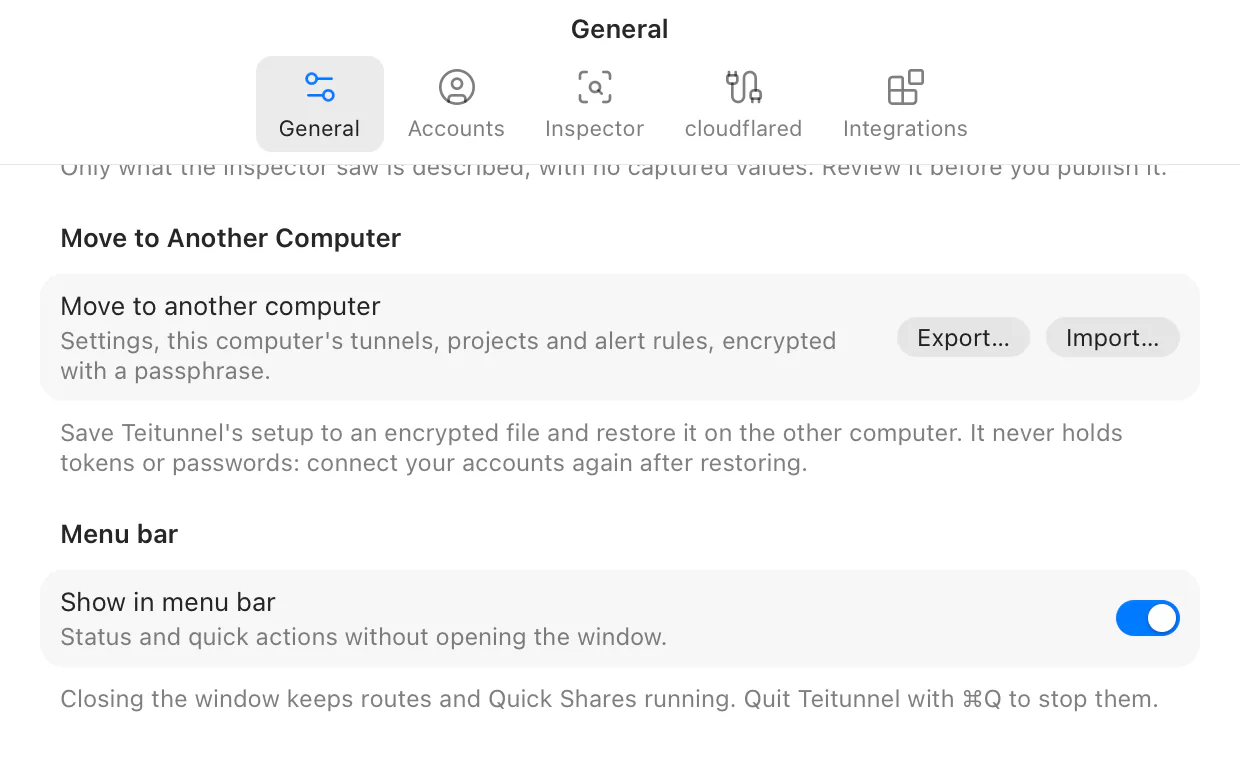
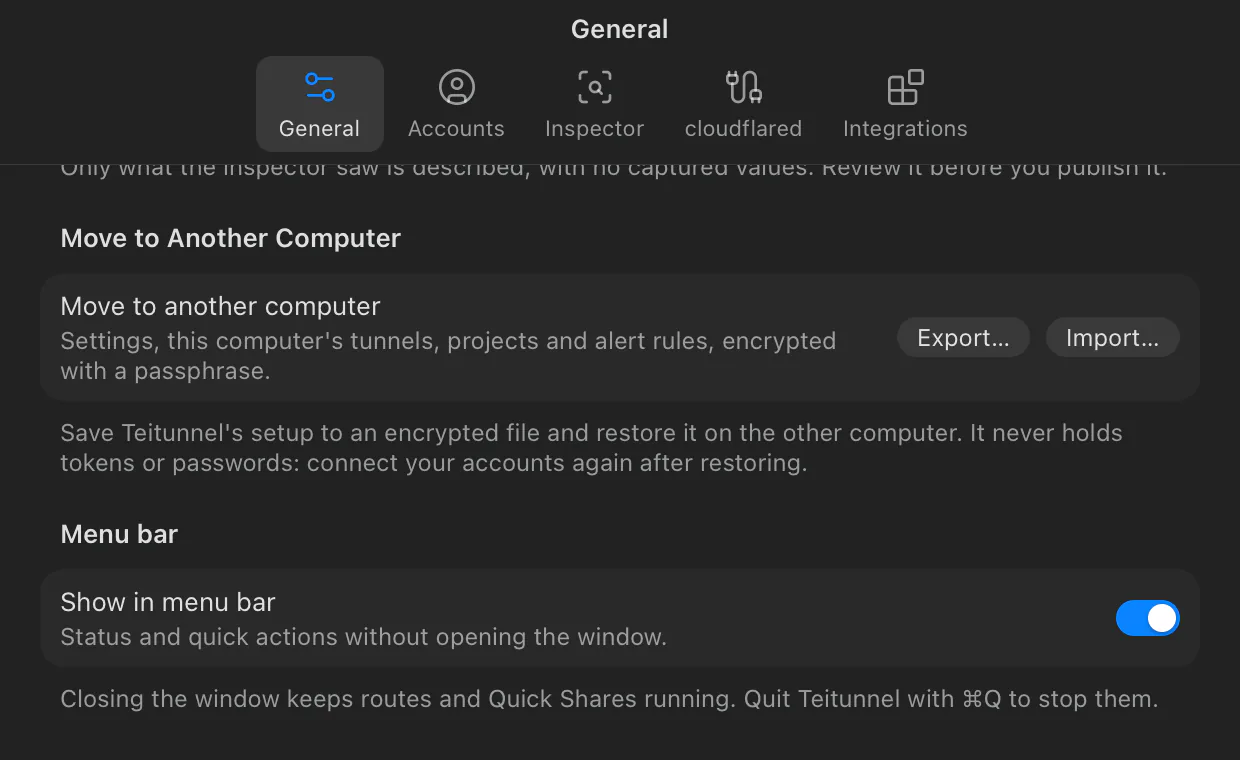
The section is Settings ▸ General ▸ Move to Another Computer.
Export on the old computer
Choose Export… and pick where to save the file (it ends in
.teitunnel-backup). Then type a Passphrase and the Passphrase again: at least 10
characters. You'll need it on the other computer; it can't be recovered. Choose
Save Backup.
Copy the file over
Any way you like: AirDrop, a USB stick, a cloud folder. The file is encrypted, so it's safe to leave in a downloads folder.
Import on the new computer
Install Teitunnel, open Settings ▸ General, choose Import…, pick the file, type the passphrase and choose Read Backup. Teitunnel shows what the backup holds (Made on … with Teitunnel 0.2.0.), each section with its count and what it replaces here, and the accounts to connect again. Nothing changes until you choose Restore, or Replace and Restore when this computer already has a setup (Restoring replaces this computer's tunnels and records of what Teitunnel created with the backup's.).
Connect your accounts
In Settings ▸ Accounts, connect the same Cloudflare accounts (Restored. Connect your accounts again to run the tunnels here.). The tunnels start as soon as their account is connected.
Stop the old computer
If you're keeping the old computer, stop its connectors (Stop Routes on This Mac in the menu bar), turn Always-on off there, or disconnect the account. Otherwise both computers run the same tunnels, and Cloudflare splits visitors between them.
From a terminal
teitunnel backup create                                       # teitunnel-setup.teitunnel-backup here
teitunnel backup create --file ~/Desktop/laptop.teitunnel-backup
teitunnel backup restore ~/Desktop/laptop.teitunnel-backup
Both ask for the passphrase (twice when creating). --passphrase-stdin reads it from the
first line of standard input instead, for scripts. restore prints what the backup holds and
asks before changing anything; --yes (-y) doesn't ask.
$ teitunnel backup restore ~/Desktop/laptop.teitunnel-backup
Backup of laptop made by Teitunnel 0.2.0:
     1  settings (alert rules and projects included)
     2  this computer's tunnels
     5  DNS records Teitunnel created
     1  logins Teitunnel added
  Projects: shop, docs
  Accounts to connect again: Teispace
Restore? [y/N] y
Restored.
Connect your accounts again (`teitunnel setup` or the app); the tunnels then run here with tokens fetched from Cloudflare.
On a server, restore the backup, then give the account's token with teitunnel setup or the
CLOUDFLARE_API_TOKEN environment variable, and start the tunnels with teitunnel up or
teitunnel always-on on. See servers.
The file
The file starts with a small header (a format version, the key derivation's parameters, a random salt and nonce), followed by the setup as compressed JSON, encrypted with XChaCha20-Poly1305. The key is derived from your passphrase with argon2id (64 MB of memory, 3 passes), which makes guessing passphrases slow. The header is authenticated with the contents, so any change to the file, even one byte, is detected: a wrong passphrase and a damaged or altered file give the same error. The file is written readable only by you.
Restoring happens in one step: either all of it is restored, or nothing changes.
Troubleshooting
- "The passphrase is wrong, or the file was changed or damaged." Check the passphrase (it's case-sensitive). If it's right, copy the file again.
- "This file isn't a Teitunnel backup, or it's damaged." It isn't a backup file, or it was cut short while copying.
- "This backup was made by a newer Teitunnel. Update Teitunnel to restore it." Update the new computer's Teitunnel first.
- "Use a passphrase of at least 10 characters." Choose a longer one.
- "Not a terminal: pass --passphrase-stdin and pipe the passphrase in."
teitunnel backupcan't ask in a script; pipe the passphrase in. - The tunnels don't start after restoring. Connect the account they belong to; until then there's no credential to fetch their run tokens with.
Related
- Accounts
- Run modes
- DNS ownership
- Export your setup: configuration for other tools instead.
Last updated on
Export your setup
Turn this computer's Cloudflare Tunnel and routes into a cloudflared config.yml, a Docker Compose service or Terraform with import blocks, from the app or with teitunnel export. What each file contains, how to use it, and why no secret is ever included.
The menu bar and tray
Route status and Quick Shares without opening the window: the menu bar or tray menu, one-click sharing of running services, pausing and stopping every share, a global shortcut that shares your dev server, and teitunnel:// links for launchers and scripts.