Guides
Browser extension
Share the local page you're on at a public URL, and see or stop your shares, from Chrome, Edge, Brave, Arc, Vivaldi, Chromium or Firefox, through the Teitunnel app.
The Teitunnel extension puts sharing where you look at your work: open your dev server in the browser, click the Teitunnel button, choose Share localhost:5173, and the public URL is copied. Its menu also lists every share (from the app, a terminal or an AI agent) with Copy and Stop.
It works through the Teitunnel app, so the app has to be running, and the app asks you before anything goes public, as it does for any other program.
Set it up
In Teitunnel, open AI & Integrations ▸ Browser. It lists the browsers installed on this
computer, found by their app (a profile folder left behind after uninstalling doesn't count).
Choose Set Up next to each one you use, or Set Up All. (From a terminal:
teitunnel browser install, or teitunnel browser install --browser firefox for one.)
Install the Teitunnel extension in that browser.
Open a page from your dev server and click the Teitunnel button in the toolbar. The browser's row then says Set up · extension connected just now.
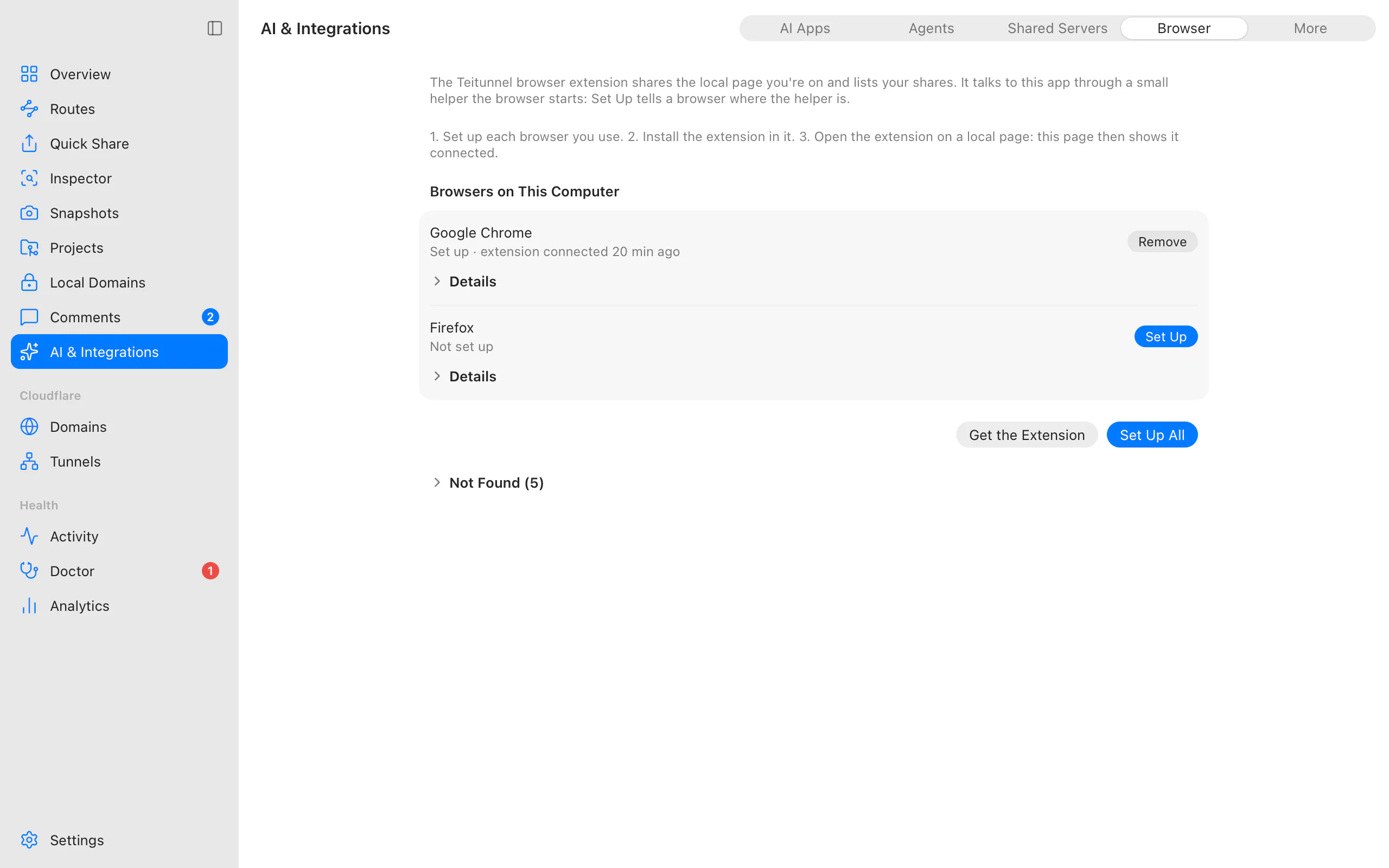
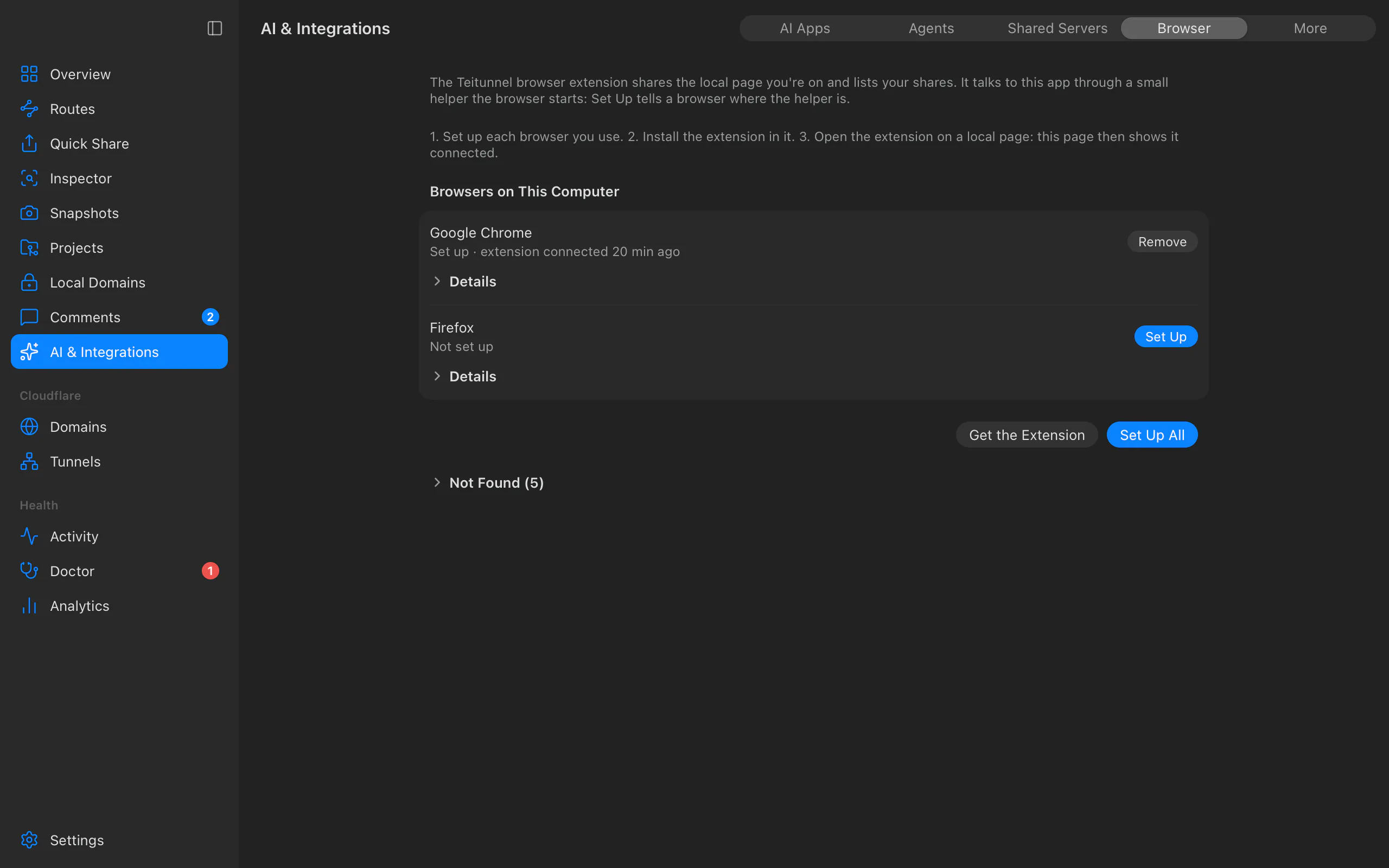
Each row tells you how far it got:
| It says | Meaning |
|---|---|
| Not set up | The browser can't start Teitunnel's helper yet. Choose Set Up. |
| Set up · the extension hasn't connected yet | The browser can start the helper, but the extension hasn't used it: install the extension, or open it on a local page. |
| Set up · extension connected 5 min ago | Everything works. The time is when the browser last started the helper for the extension. |
Details shows where the helper's settings file is and where the browser was found.
teitunnel browser status prints the same, including when the extension last connected.
What it can and can't do
- It shares only pages served from your computer or your local network:
localhost,*.localhost,127.0.0.1, private addresses such as192.168.1.20. It never shares a public website you happen to be on. - Sharing asks you in the app first (Teitunnel browser extension wants to share localhost:5173). Choose Always Allow to skip the question next time; it's listed under AI & Integrations ▸ More ▸ Always allowed, where you can take it back.
- It lists shares and stops them, and Open Teitunnel brings the app forward.
- It asks the browser for two permissions only: native messaging (to talk to the app) and the current tab's address when you click its button. It reads nothing else, and no page can talk to it.
How it works
Browsers let an extension talk to a program on your computer through native messaging:
the browser starts the program the extension names, as registered in a small manifest file,
and they exchange messages over its standard input and output. Set Up registers the
teitunnel command that comes with the app in each installed browser, for the Teitunnel
extension only. That command passes a few requests on to the app over its
control connection: the status, the
shares, sharing a local page, stopping a share and opening the app. Nothing listens on the
network.
Manifests live in each browser's NativeMessagingHosts folder on macOS and Linux (on Windows,
under %LOCALAPPDATA%\Teitunnel with a registry key per browser under HKEY_CURRENT_USER,
which Teitunnel writes and reads back directly). When a browser starts the helper, it notes
which browser and when in browser-extension.json in Teitunnel's data folder: that's the
extension connected time. Remove (or teitunnel browser uninstall) deletes them again; files anyone else put there are left alone.
Troubleshooting
- "Set up the extension in Teitunnel": the browser couldn't find the app's registration. Choose Set Up for that browser in AI & Integrations ▸ Browser (after installing a new browser, set it up too), then reopen the extension's menu.
- Set up, but the extension never connects: the extension isn't installed in that browser, or it's a different browser profile's copy. Open the extension on a local page; the row updates when you come back to Teitunnel.
- "Teitunnel isn't running": open the app (turn on Open at login to keep it there); Open Teitunnel in the menu does it.
- "Teitunnel's connection for other programs is off": turn on the control connection in AI & Integrations ▸ More.
- Browsers installed as Flatpak or Snap packages can't start programs outside their sandbox.
Related
- Links and integrations: editors, launchers and
teitunnel://links - Sharing
Last updated on
Links and integrations
Share and open things in Teitunnel from VS Code, JetBrains IDEs, Raycast, teitunnel:// links and scripts, through the app's local control connection, with every change approved by you.
AI agents (MCP)
Let Claude Code, Cursor, VS Code, Codex, Windsurf, Zed, Claude Desktop, Gemini CLI, Copilot CLI, opencode, Kiro, LM Studio or Junie share your dev server, manage Cloudflare Tunnel routes, debug webhooks and fix problems through Teitunnel's MCP server, with your approval for every change.