Concepts
How changes are made
Every change Teitunnel makes to your Cloudflare account follows one path: read what's there, plan the smallest set of steps, let you review it, apply it step by step with automatic rollback, and check the result through Cloudflare's edge. Plus Undo, Activity and the terminal equivalents.
Every change Teitunnel makes to your Cloudflare account, whether you started it in the app, the terminal, a project file, an AI agent or the Doctor, goes through the same engine in four steps: look, plan, apply, verify. Nothing calls the Cloudflare API on the side. That's what makes it safe to try things: you always see what will happen first, a failure never leaves half a change behind, and every change is recorded.
what you asked for ─┐
                    ├─▶ plan ─▶ you review ─▶ apply, step by step ─▶ verify
what's in Cloudflare┘                              │
                                            Activity (every step)
Look
Teitunnel reads the current state of everything the change touches, from Cloudflare itself: the tunnel and its routes (with the configuration's version number), the DNS records on the hostnames involved, logins, private networks, and who holds the names (another machine's route, or a teammate's reservation). It adds what it knows locally: which records and logins it created, and whether this computer's connector runs.
Cloudflare is the source of truth. Teitunnel doesn't keep its own copy of your routes, so an edit made in the dashboard or on another machine is never overwritten by stale data.
Plan
From what's there and what you asked for, Teitunnel works out the smallest set of steps that gets there, in a safe order, and shows them before anything changes.
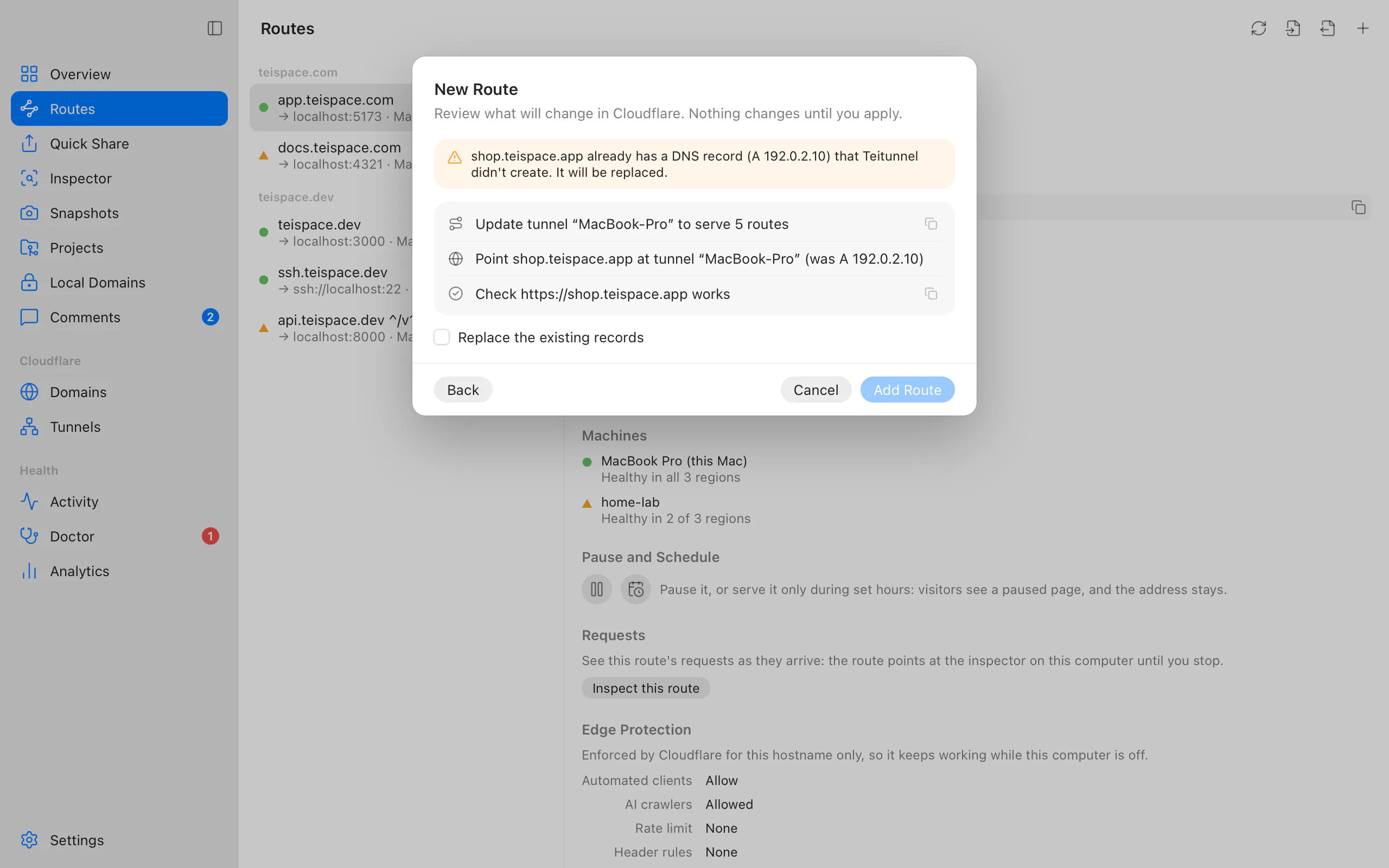
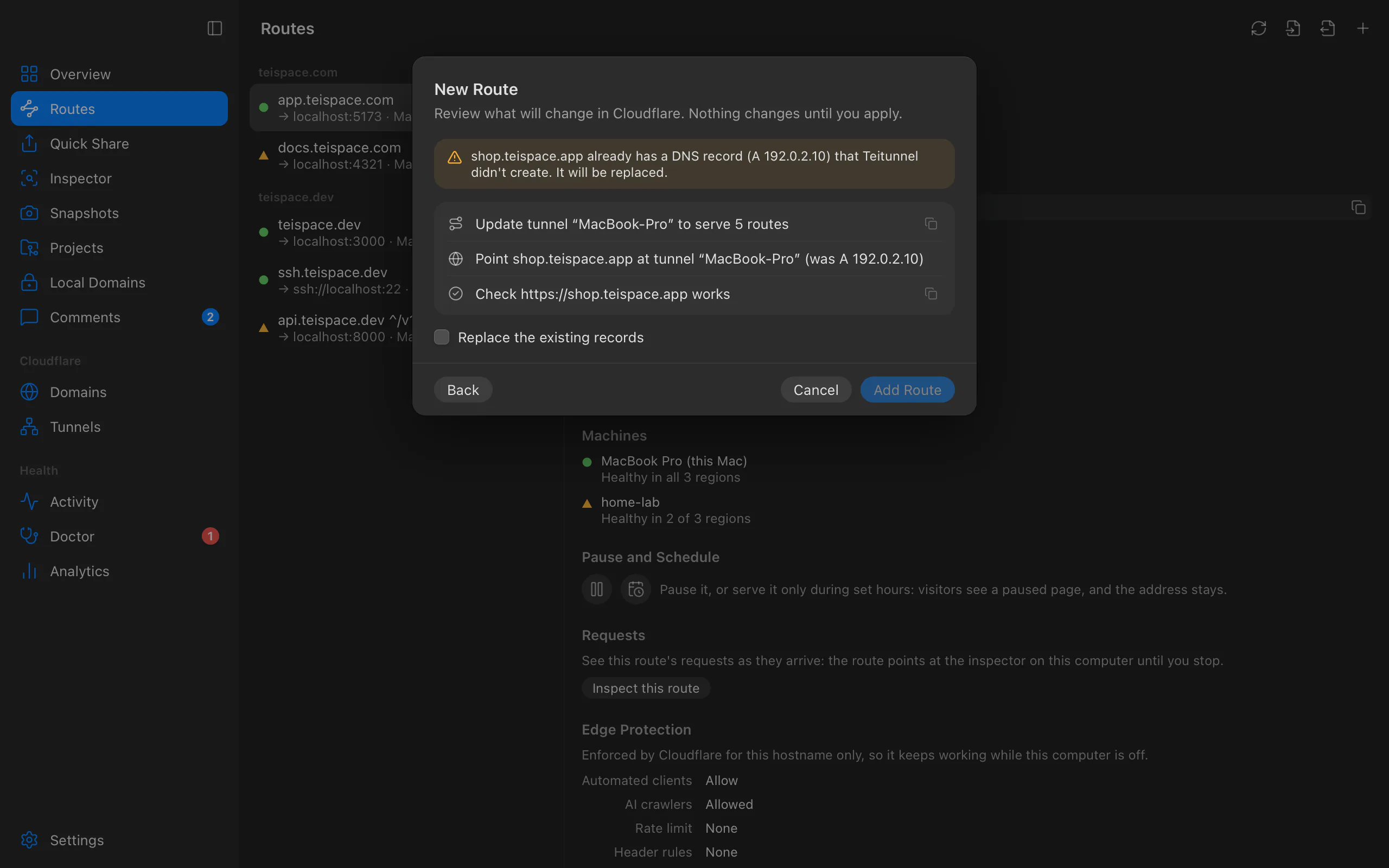
The review sheet says Review what will change in Cloudflare. Nothing changes until you apply. Each step is written as its outcome, for example:
- Create tunnel “laptop” (only the first time)
- Update tunnel “laptop” to serve 3 routes
- Add DNS record app.yourhost.com → tunnel “laptop”
- Check https://app.yourhost.com works
The order is chosen so nothing is ever briefly broken or exposed:
- Adding: tunnel, then the tunnel's routes, then DNS, then the check. The tunnel knows the hostname before DNS sends anyone to it, so there's no window of 404s.
- Removing: the route comes off the tunnel first, then its DNS record (only one Teitunnel created), then its login, then the tunnel if you're deleting it.
- Logins: a login goes up before the route goes live and comes down after the route is gone, so a protected route is never reachable without one.
If nothing needs to change, the plan says so (Nothing to change: it's already set up.) and there's nothing to apply. Planning the same request again after applying it always gives an empty plan.
Warnings and confirmations
The plan calls out anything you should know, and some things need you to say yes explicitly before Apply is possible:
| The plan says | What you confirm |
|---|---|
| app.yourhost.com already has a DNS record (A 203.0.113.4) that Teitunnel didn't create. It will be replaced. | Replace the existing records |
| The CNAME record for old.yourhost.com (…) wasn't created by Teitunnel. It will be deleted. | Replace the existing records |
| app.yourhost.com is reserved by … until …. Going ahead takes it over. / … is routed by … on another machine. Going ahead takes it over, and their route stops working. | Take this hostname from whoever holds it |
| … isn't a private range. WARP clients would reach those addresses through this Mac instead of the internet. | Send these public addresses through this Mac |
Others are for information only: a record left in place because Teitunnel didn't create it, a service that isn't on this Mac, a tunnel left with no routes, a private range that overlaps another, a domain's plan quota for edge rules, or Worker requests counted against the free daily limit.
Each step has Copy as command: the equivalent cloudflared command or Cloudflare API
call, with $CLOUDFLARE_API_TOKEN in place of any secret. Use it to learn what Teitunnel
does, or to repeat a step by hand.
Apply
When you choose Apply (the button names the change: Add Route, Save, Remove, Delete Tunnel…), the steps run in order and each shows its state: Next, In progress, Done.
- One change at a time per account. Changes to the same account wait for each other, so two windows, a terminal and an agent can't interleave steps.
- Stale plans are never applied. Just before applying, Teitunnel reads Cloudflare again and compares a fingerprint of what the plan was based on. If anything changed since you reviewed it (a teammate added a record, someone edited the tunnel), nothing is applied and you see the new plan instead: Something changed in Cloudflare since you reviewed this change. Review it again. The same check guards every write of the tunnel's configuration, by its version number.
- Confirmations are enforced by the engine, not just the button: a plan that replaces records Teitunnel didn't create is refused unless you confirmed it.
- Brief failures are retried. Cloudflare asking to slow down (429, honouring its
Retry-After), server errors and network drops are retried inside the step. Errors that won't go away (a missing permission, an invalid value) fail the step.
When a step fails: rollback
Every step knows how to undo itself: a created record is deleted, a changed record gets its old value back, the tunnel's previous routes are put back, a created tunnel is deleted. If a step fails, every step already done is undone, newest first, and the sheet shows how it ended:
- Everything done before the failure was undone. Nothing was left behind. The steps show Undone, and Activity records the change as Failed and undone.
- If an undo itself fails (say, the network dropped mid-way), you get exactly what was left: Some changes couldn't be undone: followed by lines like DNS record app.yourhost.com was created and is still there. The step shows Couldn't undo, Activity records Failed, partly undone, and the Doctor picks up anything left over.
Undo after it worked
After a change applies, the confirmation (Route added, Route updated, Route removed) offers Undo for 10 seconds. Undo plans and applies the opposite change (removing the route you just added, putting back the route you just edited or removed) through the same engine. If the opposite change would need a confirmation, Undo stops and says why instead. Later, you can always make the opposite change yourself.
Verify
For routes a browser can open, the last step checks the hostname end to end through Cloudflare's edge, the way a visitor would, and reports each stage so a failure says what to do:
- DNS: the record is read through the API and must be a proxied CNAME to this computer's tunnel. Teitunnel never looks the hostname up itself, so a lookup made before the record existed can't get cached by your computer's resolver.
- Cloudflare to the tunnel: an HTTPS request goes straight to a Cloudflare edge address with the hostname. No connector, the wrong tunnel, a hostname Cloudflare doesn't serve yet, or a certificate that doesn't cover the name each have their own message.
- The tunnel to your service: 502 or 504 means cloudflared couldn't reach the service; Teitunnel checks whether anything listens on the port and names it.
- Your service: any other answer counts as working, and its status is shown, unless it's a dev server refusing the public address (Vite, webpack, Next.js, Rails, Django). Then the check says so and offers the fix: the Host header to send, or the line to add to the server's config.
Brief failures right after a change (a connector still connecting, a record Cloudflare
hasn't picked up) are retried every 2 seconds for up to 30 seconds. While it runs, the sheet
says Checking https://app.yourhost.com works… The connector can take a few seconds to
connect. A route behind a login counts as working when Cloudflare asks for the login
(Protected by a login). SSH, RDP and other TCP routes aren't checked; Teitunnel shows the
cloudflared access command visitors use instead.
Activity
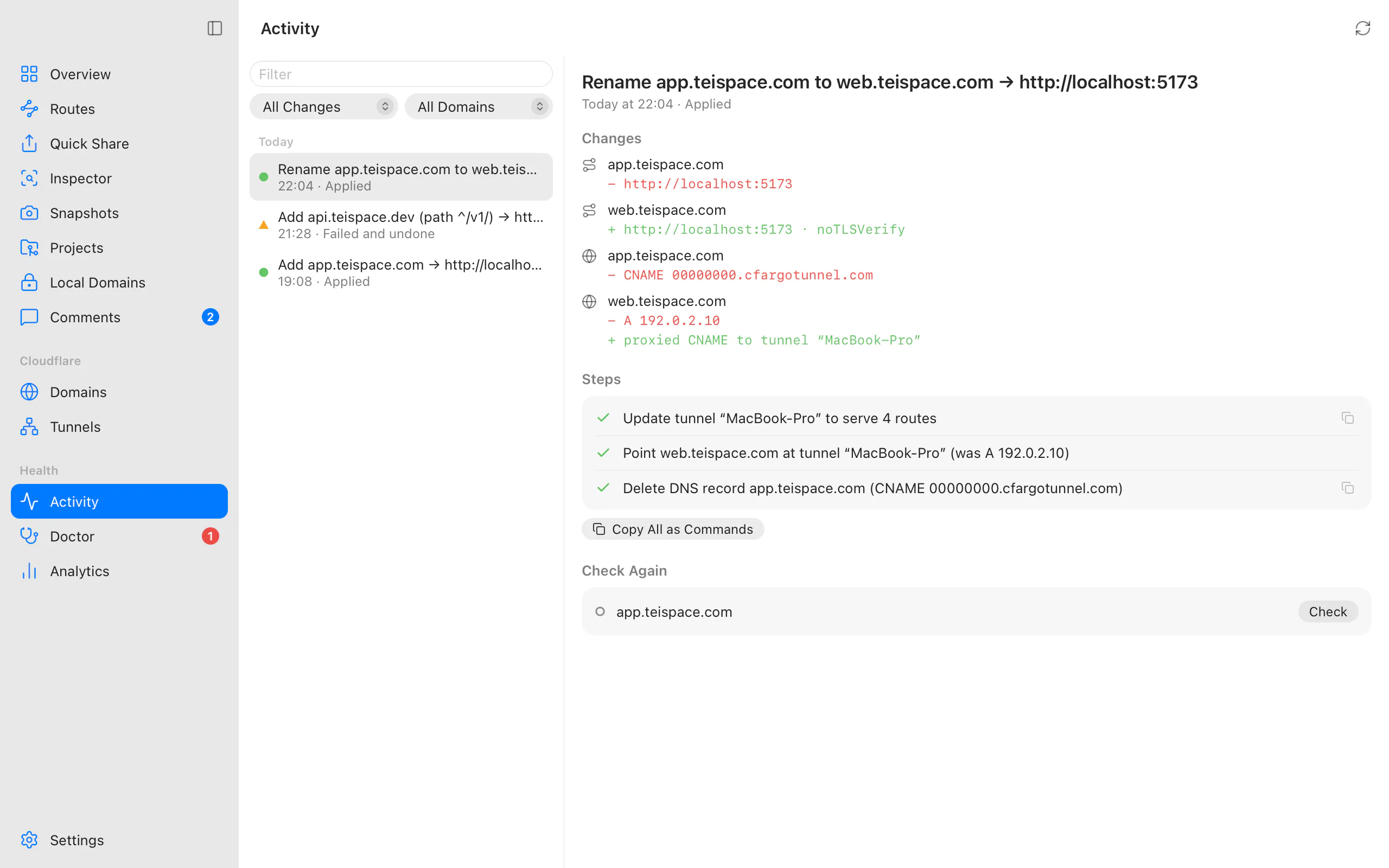
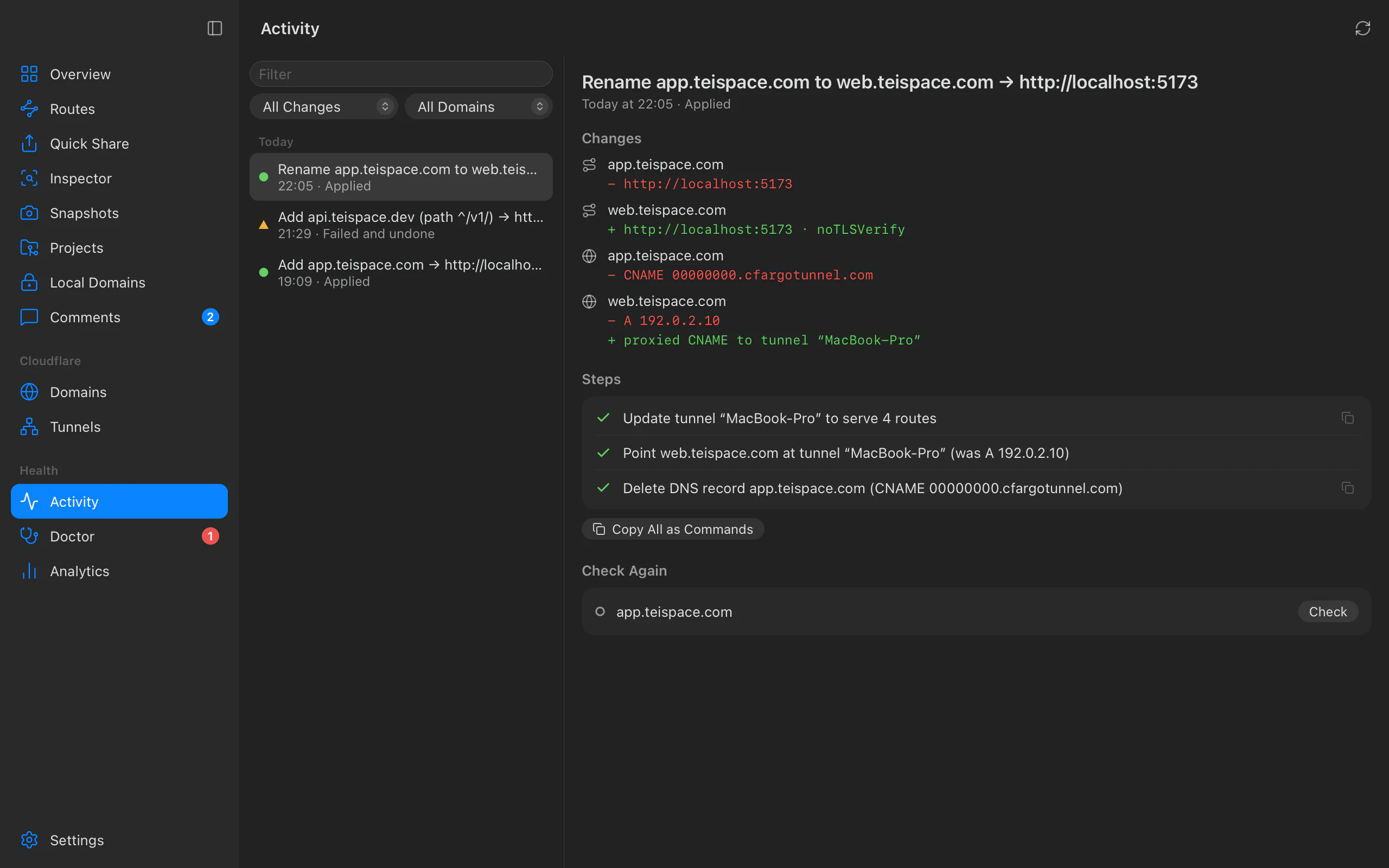
Activity in the sidebar records every change: what was asked, when, by whom (changes made by an AI agent or another program show By …), each step and how it ended, and what changed, with Before and After per route, DNS record, login, private network or other area. From an entry you can:
- Copy All as Commands: every step as
cloudflaredcommands and API calls, to repeat by hand or keep as a record. Secrets appear as$CLOUDFLARE_API_TOKEN, never their values. - Check Again: test a hostname the change routed, if it's still routed.
Filter by kind of change (Routes Added, DNS Cleanups, Imports, Alerts…), by domain, by text, or show Only Problems (failed changes and alerts).
From a terminal
teitunnel commands that change Cloudflare print the same plan, ask, apply with progress,
and check:
$ teitunnel route add app.yourhost.com 3000
! app.yourhost.com already has an A record (203.0.113.4) that Teitunnel didn't create. It will be replaced.
 1. Update tunnel “laptop” to serve 2 routes
 2. Point app.yourhost.com at tunnel “laptop” (was A 203.0.113.4)
 3. Check https://app.yourhost.com works
teitunnel: This needs a confirmation (see above). Pass --replace to allow it.| Flag | What it does |
|---|---|
--yes, -y | Apply without asking. Without a terminal to ask on (scripts, CI), it's required: Not a terminal, so nothing to ask. Pass --yes to apply. |
--replace | Allow what needs a confirmation: replacing or deleting DNS records Teitunnel didn't create, or routing a public range. |
--take-over | Take a hostname someone else holds (their reservation, or another machine's route). Without it the command stops with exit status 3. |
--account, -a | The account, by name or id, when several are connected. |
--tunnel | One of this computer's tunnels, by name. |
How it ended is printed and reflected in the exit status: https://app.yourhost.com works.
(0), a failed check with its explanation (1), Failed: … Everything was undone. (1), or
Failed: … These couldn't be undone: with the leftovers (1). Nothing to change. exits 0.
Troubleshooting
- "Something changed in Cloudflare since you reviewed this change. Review it again." Someone or something changed the account between your review and Apply. Choose Review Again, check the new plan and apply that.
- "This change replaces DNS records Teitunnel didn't create. Confirm it first." Tick
Replace the existing records in the plan (
--replacein the terminal), or pick a name that's free. - "Cloudflare refused: this account's token lacks a permission (…)." The token can't do one of the steps. Nothing was left behind; see accounts for adding the permission in place.
- "Couldn't reach Cloudflare. Check your internet connection." Nothing was applied, or everything done was undone. Try again when you're back online.
Related
- DNS ownership: which records Teitunnel may change.
- Routes and tunnels
- Doctor: problems and their fixes, applied through the same engine.
- CLI reference
Last updated on
Routes and tunnels
How Teitunnel maps hostnames on your domain to services on your computer: the machine tunnel and its connector, what a route is made of in Cloudflare, path rules and their order, route status, and what happens when routes are changed outside Teitunnel.
Run modes
Where this computer's Cloudflare Tunnel connector runs: in the Teitunnel app, as an Always-on launchd, systemd or Task Scheduler service that survives quitting and restarts, in the foreground with teitunnel up, with a web dashboard with teitunnel serve, or in Docker.