Guides
Comments
Let reviewers pin comments to any spot on a share or Snapshot, reply and resolve; read and answer them in Teitunnel, the terminal or from an AI agent.
Send someone a link and get feedback exactly where it applies. With Comments on, the shared pages get a small comment button in the corner. Reviewers click a spot on the page, type, and the comment is pinned there with a number; they can reply to each other and resolve threads. You read and answer everything in Teitunnel's Comments view, from the terminal, or through an AI agent.
Use it for design reviews, a client looking at a preview, or a teammate testing a branch: anything where "the button on the pricing page" is easier to point at than to describe.
Turn it on
- A Quick Share, or a share on your domain: on its card in Quick Share, switch on Comments. "Reviewers can now comment on this share's pages". The switch is there while the share's requests go through the inspector, which is the default; the inspector adds the comment button to the pages.
- A share from the terminal:
teitunnel share 5173 --comments(or with--on demo.yourhost.com); the share runs in that terminal. - A Snapshot: when you publish it or a new version, switch on Comments in the
settings step, or pass
--commentstoteitunnel snapshot publishorupdate.--no-commentsturns them off again.
Show Comments next to the switch opens the Comments view at that share.
For reviewers
The button in the corner shows how many threads are open.
- Choose Add a comment, then click the spot you want to comment on (or choose Comment on the whole page).
- Type the comment and press Comment (⌘-Enter or Ctrl-Enter works too).
- The first time, give Your name; the browser remembers it.
Reviewers can Reply, Resolve and Reopen threads, and Show resolved to see closed ones. When the hostname has Teitunnel's own login, the name comes from Cloudflare Access and the comment is marked Signed in. Your own replies are marked Owner.
The overlay is keyboard accessible, follows the visitor's light or dark setting and Reduce Motion, and lives in a closed Shadow DOM, so it never picks up or changes the page's styles. It loads nothing from anywhere else, and works under a strict Content Security Policy.
Read and answer
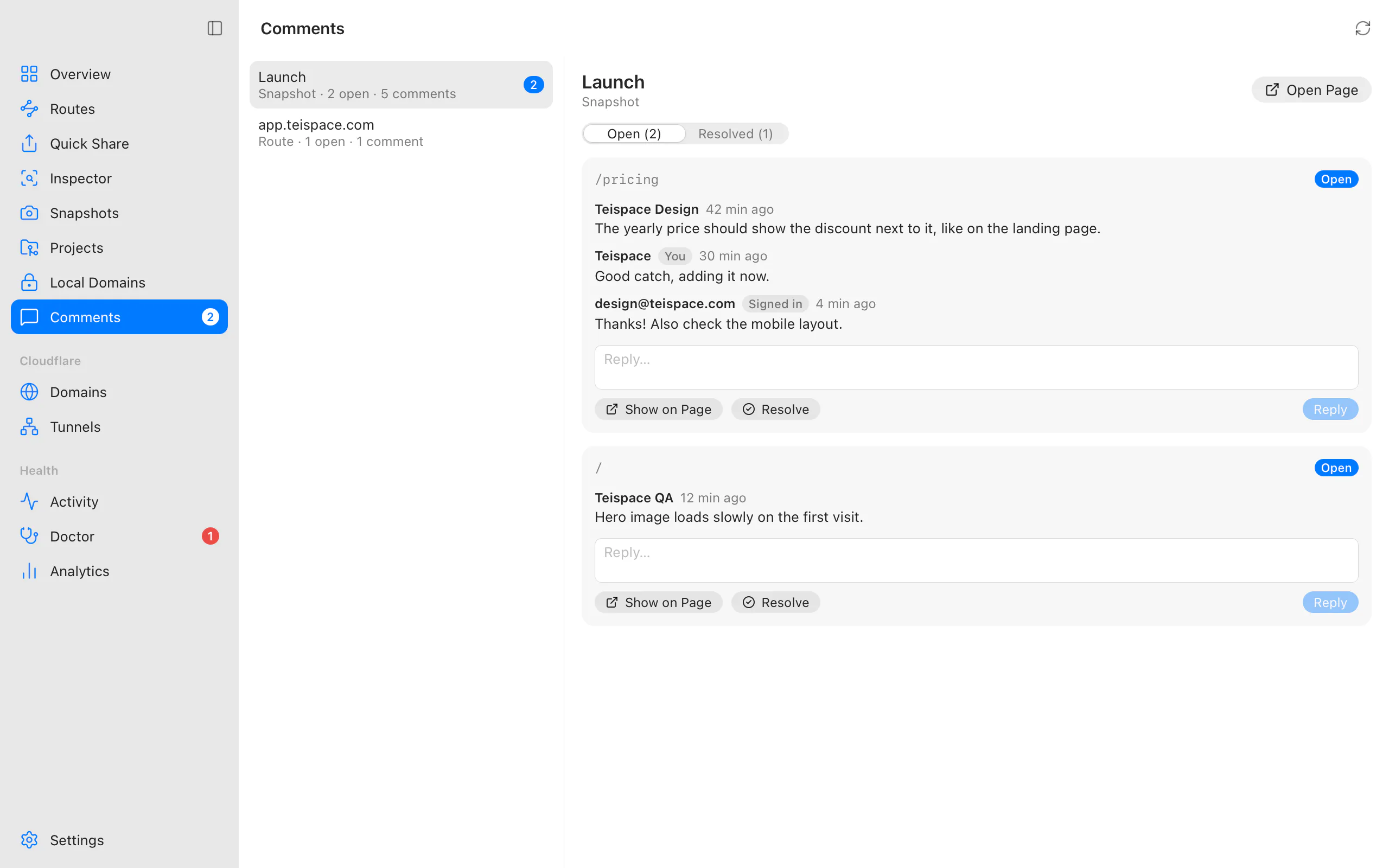
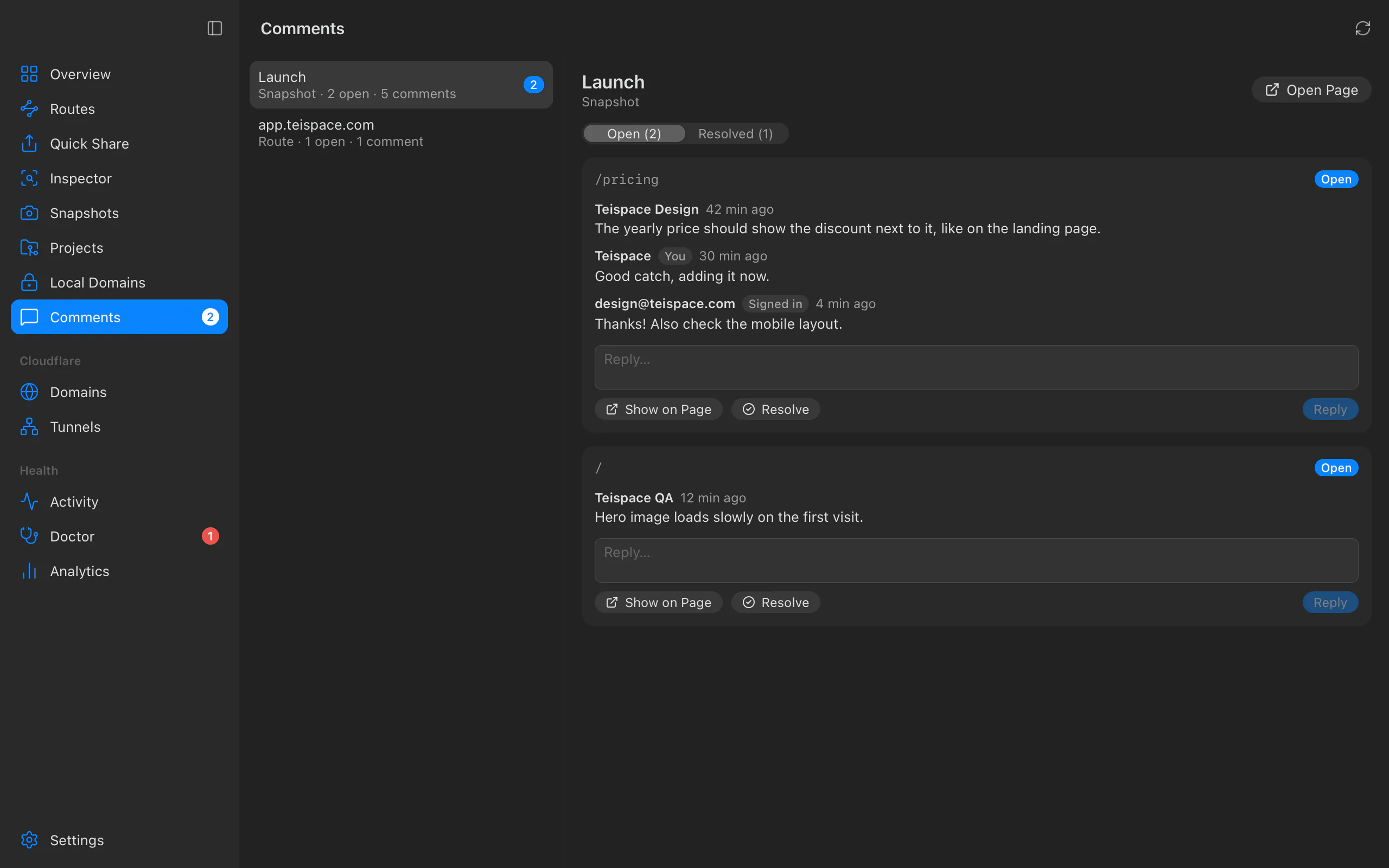
Comments in the sidebar lists every share and Snapshot with comments ("Shares with comments"), with a badge for unread ones. A notification ("New comment on preview.yourhost.com") tells you when someone writes, except during quiet hours. Each thread shows its page and the comments, with:
- Reply: your answer is marked as the owner's for reviewers.
- Resolve / Reopen.
- Show on Page: opens the page in your browser at the spot, with the thread open.
- Open Page: opens the page.
Use Show to switch between Open and Resolved threads.
Comments on live shares arrive at once. Comments on Snapshots are read from Cloudflare every 2 minutes while the app runs.
From the terminal
teitunnel comments ls                                  # what has comments
teitunnel comments ls preview.yourhost.com             # its open threads
teitunnel comments ls "Launch page" --all              # include resolved threads
teitunnel comments reply preview.yourhost.com c1a2b3 "Fixed in the new version, thanks"
teitunnel comments resolve preview.yourhost.com c1a2b3
teitunnel comments resolve preview.yourhost.com c1a2b3 --reopen
A subject is a hostname, a Snapshot's name, or a key from comments ls (snapshot:…,
route:…, share:…). Each thread is listed with its id, page and a link that opens it on
the page. --json prints JSON. Replies are written as you, the owner.
From an AI agent
Agents connected with MCP get comments_list, comments_reply
and comments_resolve: an agent can read the feedback on a preview, change the code and
answer. Replies and resolutions are changes, so they ask you first in ask mode.
Reviewers' email addresses are never given to agents.
Where comments are kept
- Shares: in Teitunnel's database on this computer. Nothing goes to Cloudflare, it costs no Worker requests, and it works on Quick Shares without an account. The pages are only reachable while this computer is on anyway.
- Snapshots: in a D1 database on your own Cloudflare account,
teitunnel-data, created the first time you turn comments on, as a step of the reviewed plan. The Snapshot's Worker answers reviewers; Teitunnel reads and answers with your own API token, so no Worker has an owner API or holds a key. Deleting a Snapshot deletes its comments. The same database holds webhook inboxes.
Limits and costs
| Limit | |
|---|---|
| One comment | 4,000 characters |
| A name | 80 characters |
| Comments per share or Snapshot | 2,000 |
| Comments per thread | 200 |
| Writes per visitor | 10 a minute, 60 an hour |
| Request body | 16 KB |
Comments are stored and shown as plain text: HTML or scripts in them are never run, and control and bidi-override characters are refused. Comments can only be posted from a page of the same site.
With comments on, every request to a Snapshot runs its Worker (to add the comment button), which counts toward Cloudflare's free 100,000 Worker requests a day. D1's free plan includes 5 million rows read and 100,000 rows written a day, and 5 GB of storage.
Permissions
Snapshot comments need Account · D1 · Edit, besides the Workers permissions Snapshots already use. If it's missing, Teitunnel shows what to add ("To keep Snapshot comments and webhooks in a database on your account.") and continues when you're back. Comments on shares need no permissions.
Troubleshooting
Related
Last updated on
Snapshots
Publish a static copy of your site to your own Cloudflare account, so a preview stays online while your computer sleeps: from a folder, a build, or a running dev server, with versions, rollback, a password or a login.
Offline page
Show your own page instead of Cloudflare's error 1033 when the computer serving a route is off or asleep, with a small Worker on your own Cloudflare account.